Main Page and Menu Usage
3. Main Page and Menu Usage
3.1 Main Page
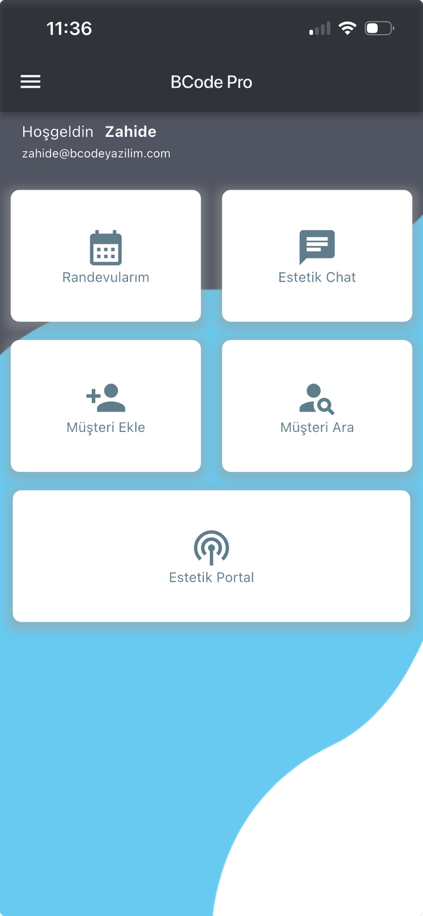
The user name and e-mail information are displayed on the main page. Shortcut boxes provide quick access to frequently used modules:
- My Appointments or Doctor Appointments
- Estetik Chat
- Add Customer
- Customer Search
- Estetik Portal
The appointment shortcut changes according to user authorization. Users with Flow authorization are directed to the My Appointments screen, while other users are directed to the Doctor Appointments screen. My Appointments, Estetik Chat and Estetik Portal sections are handled under the left menu heading.
3.1.1. Add Customer
This is used to create a new customer record. Required fields are marked with an asterisk.
Fields:
- Customer Name
- Customer Surname
- Country Selection
- E-Mail Address
- Phone Number
- Source
- Operation Group
- Operation
- Customer Notes
3.1.2. Customer Search
There are three search types on the Customer Search screen:
- File No
- Name Surname
- Mobile Phone
Restricted users can search only by File No.
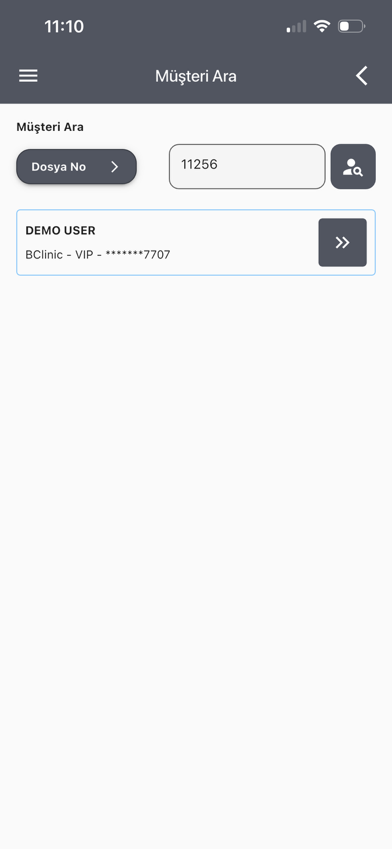
Usage:
- Select the search type.
- Enter the search text (file no, phone no or name surname).
- Tap the search icon.
- Customer name, hospital name, patient type and phone information are displayed in the result list.
- Tap the arrow button on the right to open the Patient Detail screen.
3.1.2.1. Patient Detail Screen
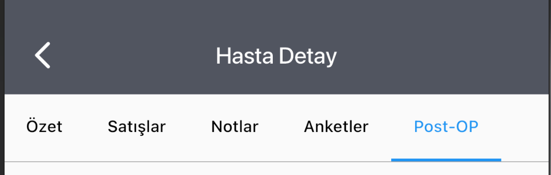
The Patient Detail screen is the central screen of the customer/patient card. The visible tabs may vary according to user authorization.
3.1.2.1.1. Summary
Basic information is displayed on the Summary tab:
- File number
- Patient type
- Name surname
- Phone and other phone
- Gender
- Marital status
- Mirror card no
- Mobile user
- Date of birth
- Occupation
- District / City
- Country
- Address
- Visit subject
- Description
- Owner
- Registration date
- Registering branch
- Registering person
This tab includes the Future Appointments button. On this screen, the patient's future appointments are listed with date and subject information. Status change fields may also appear depending on authorization.
3.1.2.1.2. Sales
Sales/service records are listed on the Sales tab. Depending on authorization, Accounting Summary and Mirror Point Summary may be displayed.
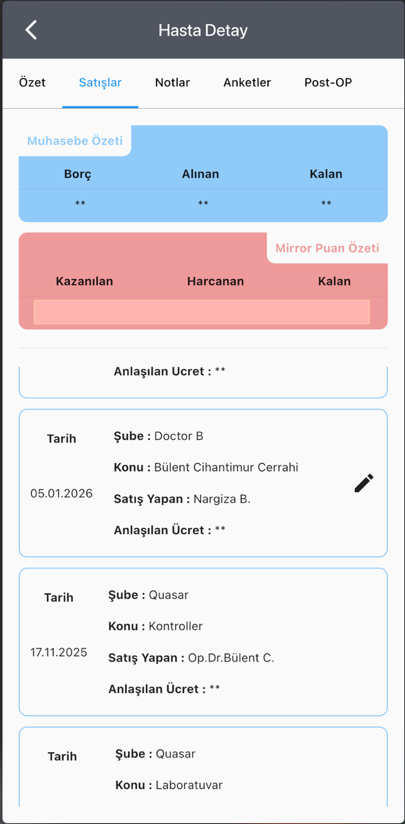
Sales cards include date, branch, subject, salesperson and, depending on authorization, agreed fee. An edit icon appears on some sales cards; this icon opens the Sales Detail screen.
Sales Detail Page:
Inside the patient detail page, the sales detail screen is opened by clicking the edit icon on cards that are surgical operations listed under the Sales tab. The Sales Detail screen includes surgery/clinical report fields. Tabs vary according to the sales subject:
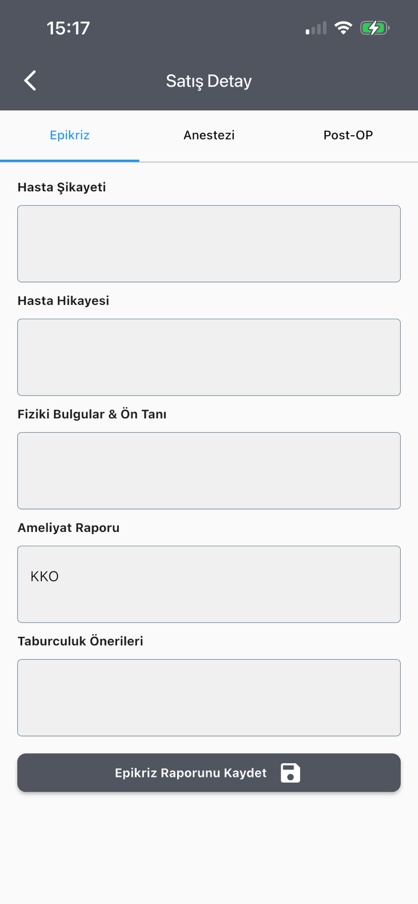
- Epicrisis Fields
- Patient Complaint
- Patient History
- Physical Findings & Preliminary Diagnosis
- Surgery Report
- Discharge Recommendations
The record is saved with the Save Epicrisis Report button.
- Anesthesia Fields
- Patient Height
- Patient Weight
- Patient Body Type
- Cardiovascular
- Respiration
- Metabolism
- Medication
- Allergy
- ASA
- ASA class boxes: I, II, III, IV, V, D
- Perioperative Follow-Up
The record is saved with the Save Anesthesia Report button.
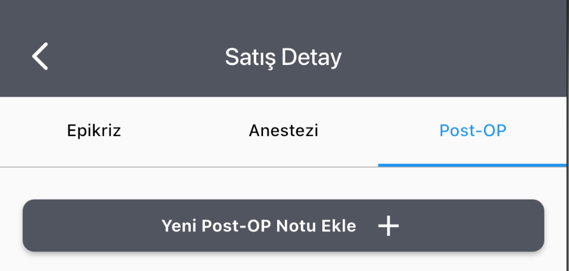
- Post-OP
Post-op notes for the related protocol are displayed and a new post-op note can be added depending on authorization.
3.1.2.1.3. Notes
Notes related to the patient are listed on the Notes tab. To add a new note:
- Tap the Add Note button.
- Write the comment or note about the patient.
- Select a star rating if needed.
- Add a file with Add File if needed.
- Tap the Save button.
A paperclip icon appears on notes with an attached file. When the icon is tapped, the file opens.
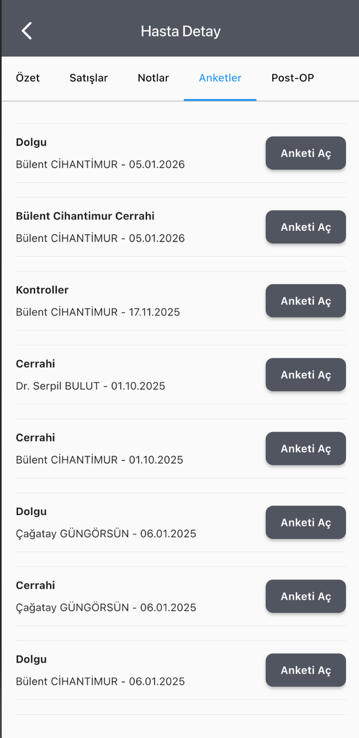
3.1.2.1.4. Surveys
Survey records belonging to the patient are listed. The related survey link opens in the in-app web view with the Open Survey button.
3.1.2.1.5. Post-OP
The Post-OP tab appears depending on authorization and sales/protocol information. All post-op notes belonging to the patient are listed. Post-op note entry cannot be made from here.