Invoice Preparation
Step 1: Preparing the Invoice
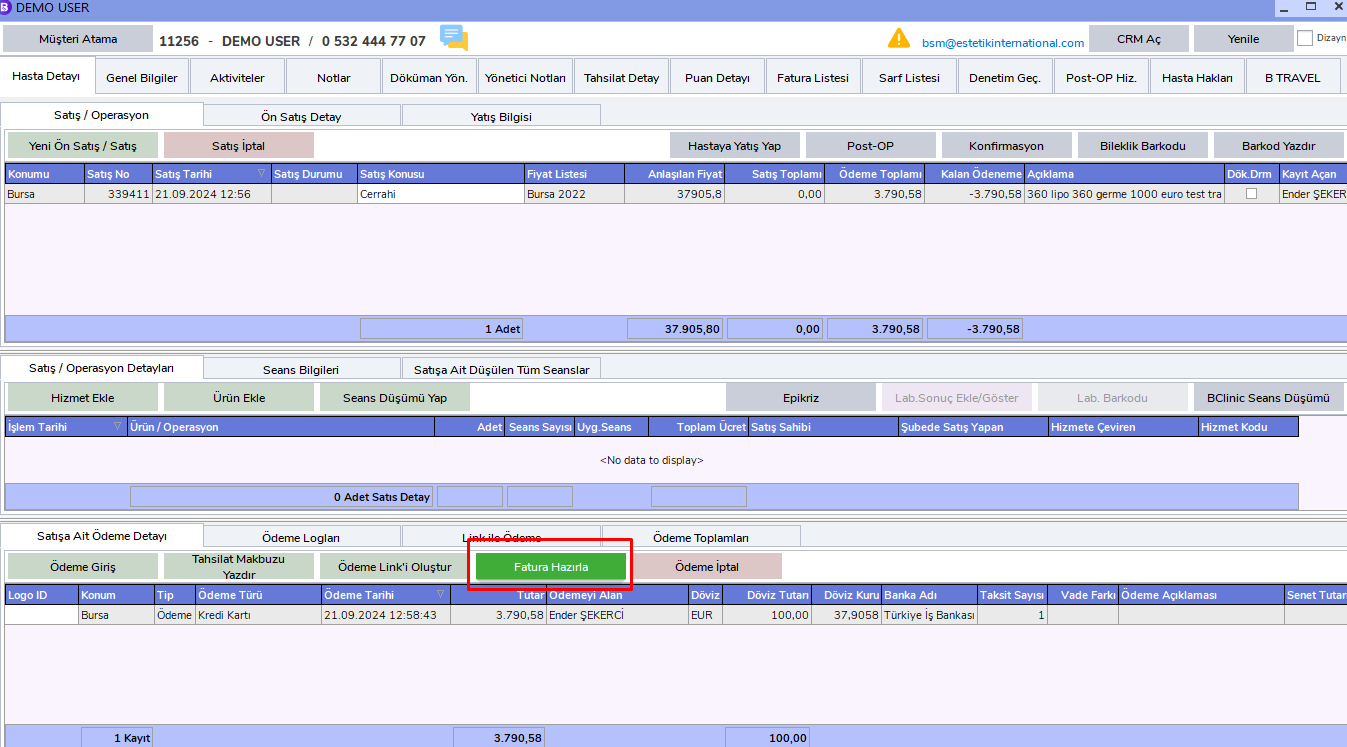
After selecting the related sale, click the Prepare Invoice button in the Payment Detail Belonging to the Sale area.
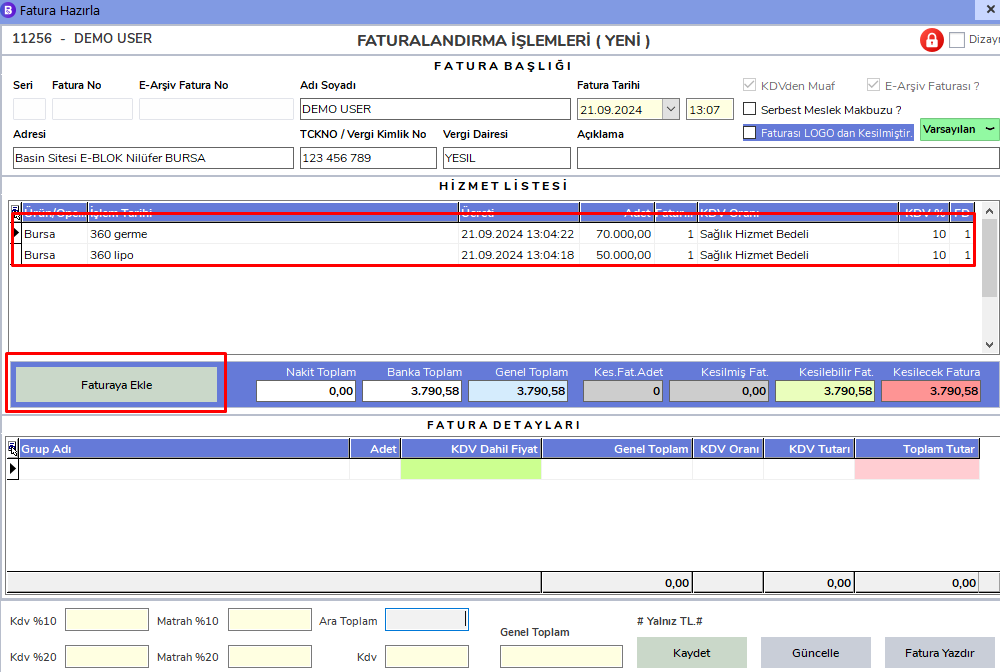
Select the services to be invoiced and click the Add Invoice button.
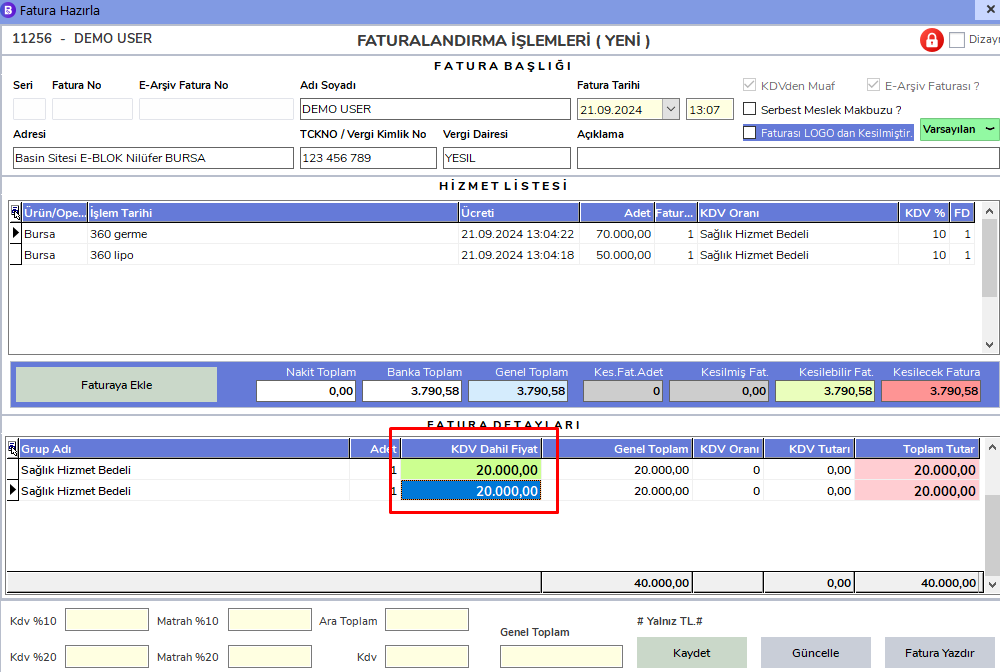
The service prices come automatically from the Price Lists. If you want to edit the agreed price, you can double-click the amount in the Price Including VAT field and edit it.
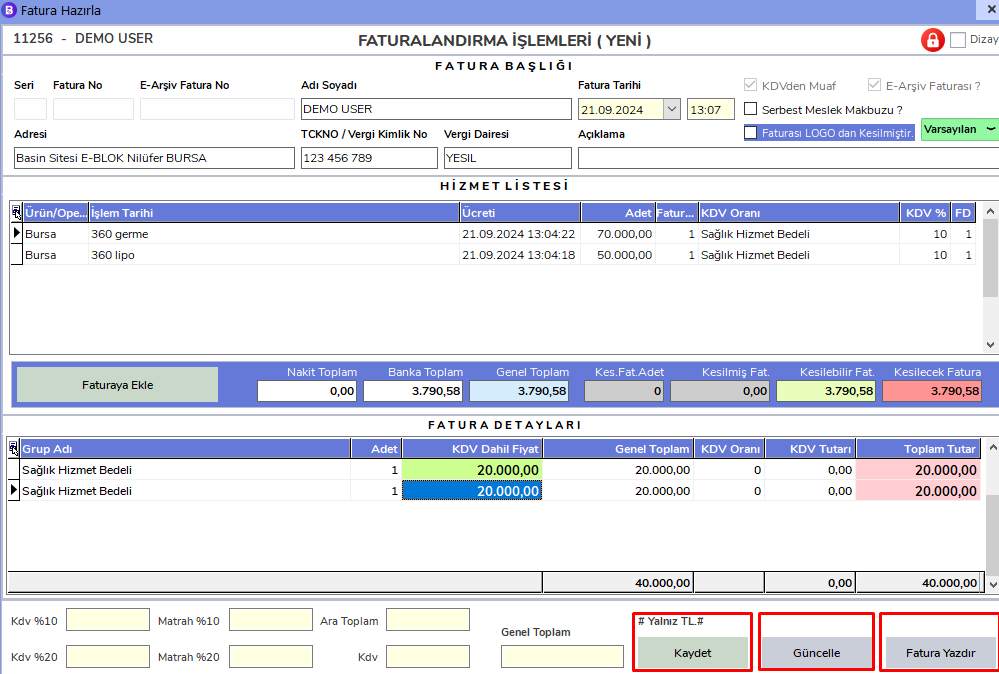
After checking the required fields, click the Save, Update, and Print Invoice buttons.
Important Notes
Sales Operations
By default, the most recent sale is automatically selected. However, during all operations, whichever sale will be processed must be selected carefully from the related sale's "Sales/Operation" area.
Service Operations
In service-related operations, the latest service is selected by default. If an operation will be performed for a service, the related service must be selected from the "Sales/Operation Details" area.