BCODE AKYS "Btravel - Patient Transfer Operations"
You can use the "Btravel" tab on the Patient Card screen to perform patient transfer operations. Through this tab, you can plan domestic or international patient transfers.
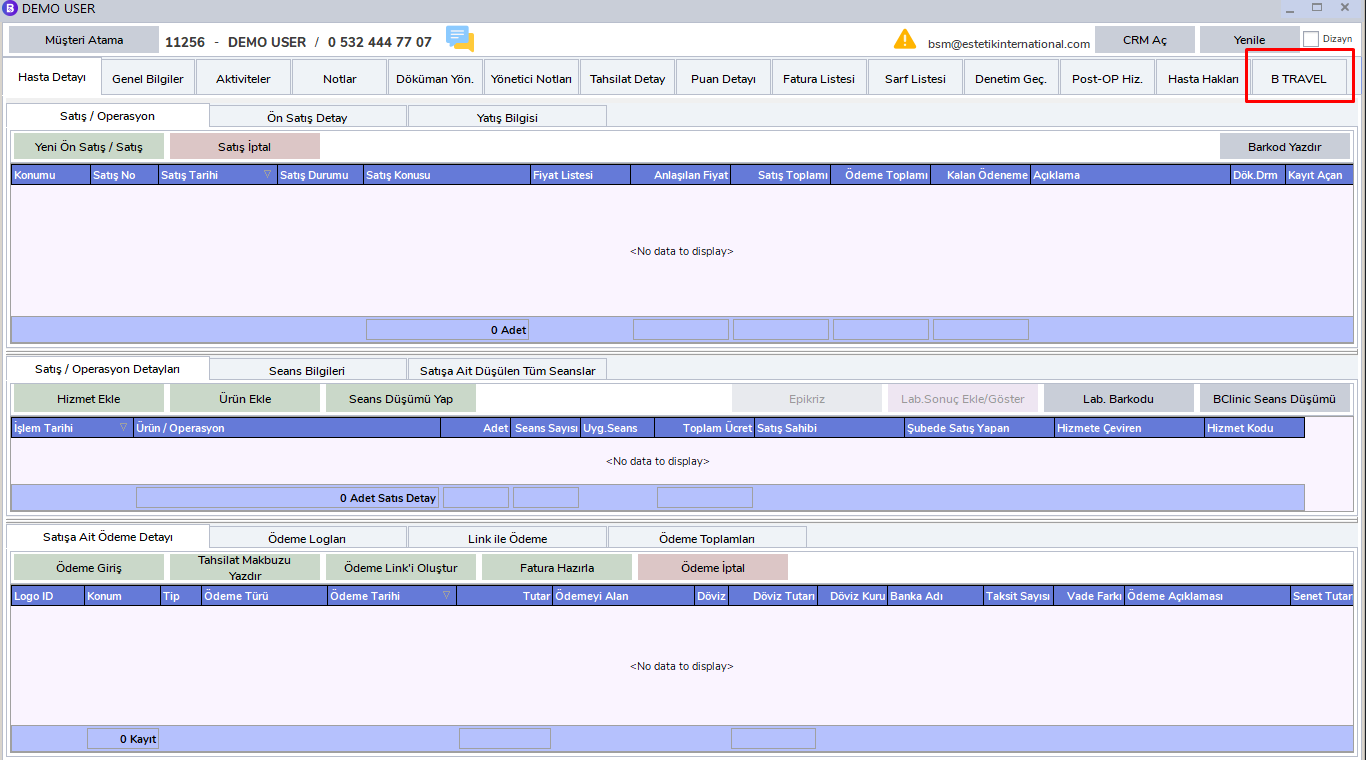
Add Transfer
Click the "Add Transfer" button on the left side under the Btravel tab.
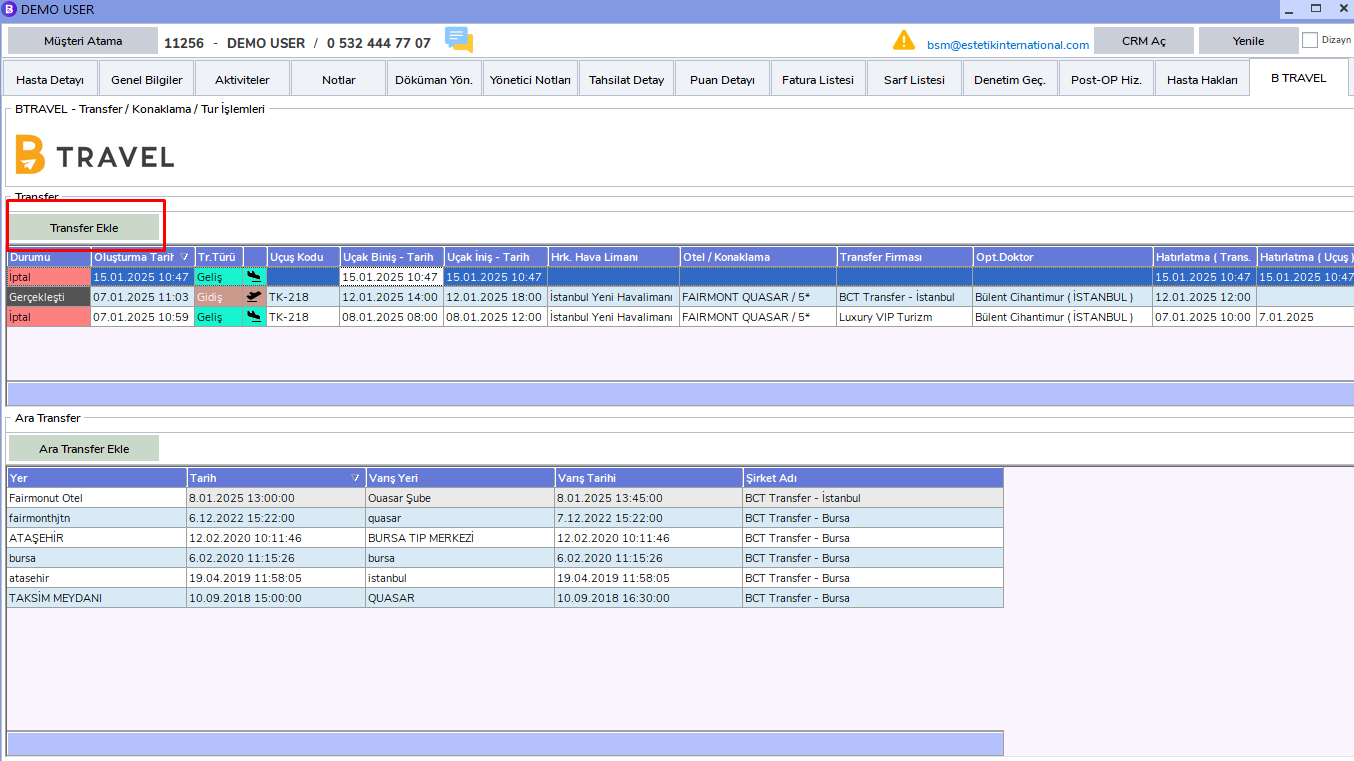
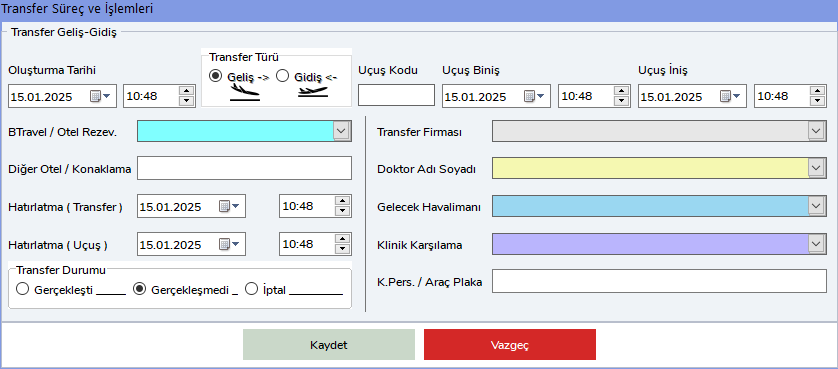
On the screen that opens, enter the arrival and departure information related to the patient transfer. This information should include:
- Flight Information
- Transfer Details
- Hotel Information
- Doctor Information
- Welcoming Team Details
- Vehicle Information
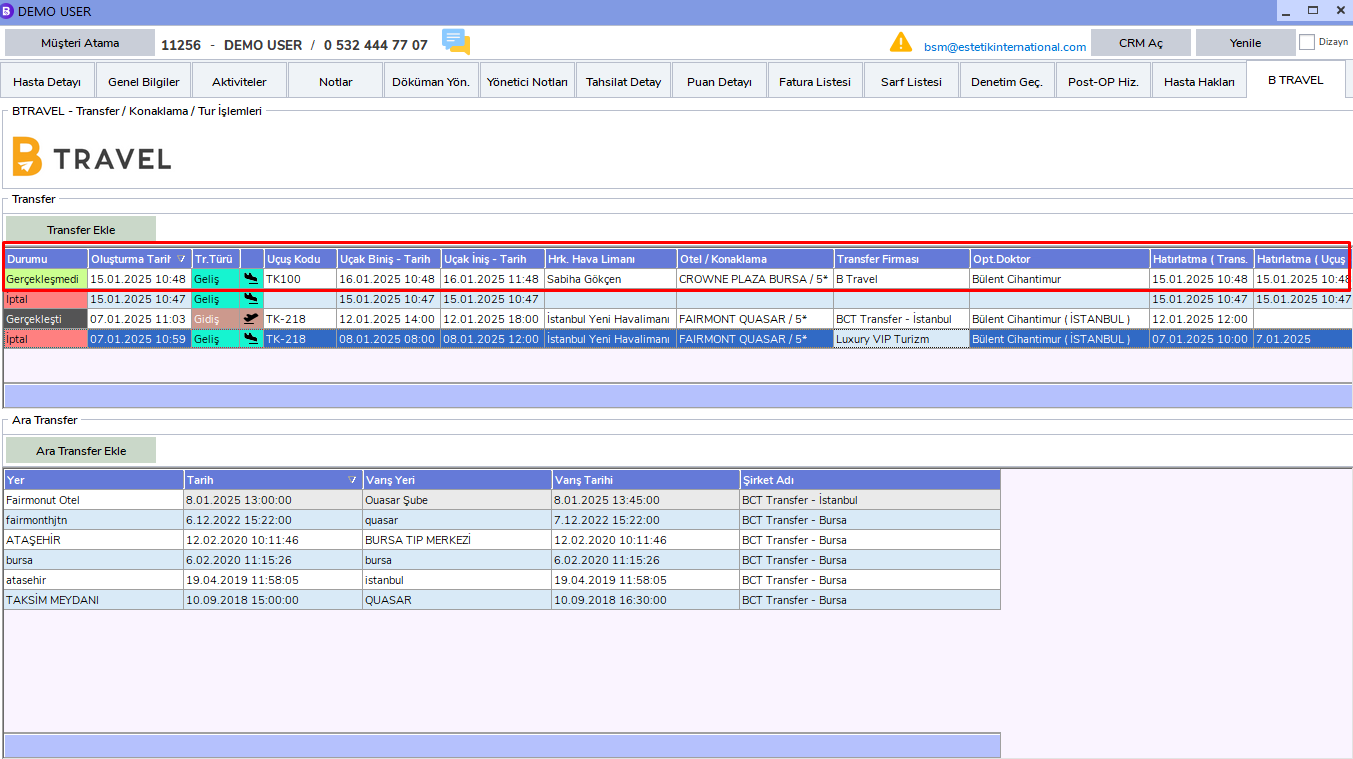
Example Transfer Information
An example completed transfer plan is shown below.
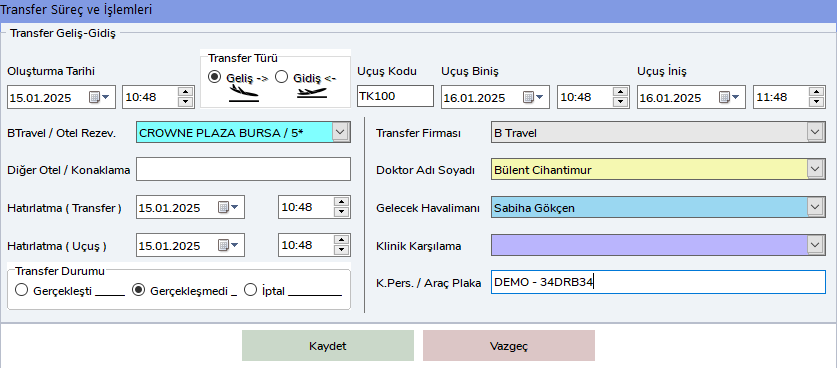
After filling in all required fields, your transfer plan will be saved to the Btravel tab.
Updating Transfer Status
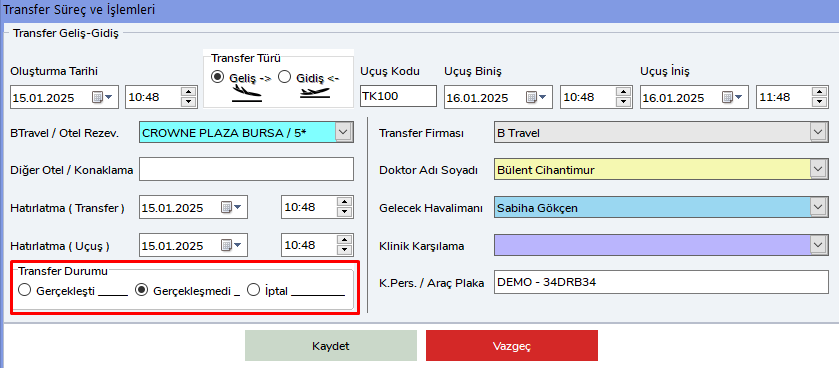
To update the status of a transfer, double-click the related transfer row. In the window that opens, you can change the transfer status from the lower left corner.
- Did Not Take Place
- Completed
- Canceled
One-Way Transfer Planning
If you want to plan only a one-way transfer, select "Departure" from the "Transfer Type" options and fill in the required fields.
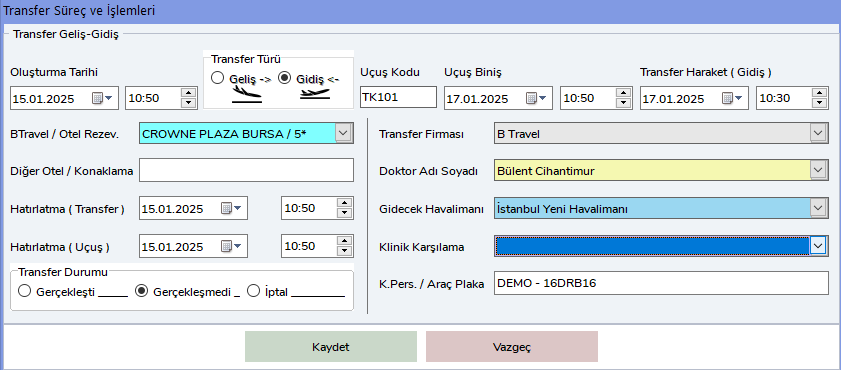
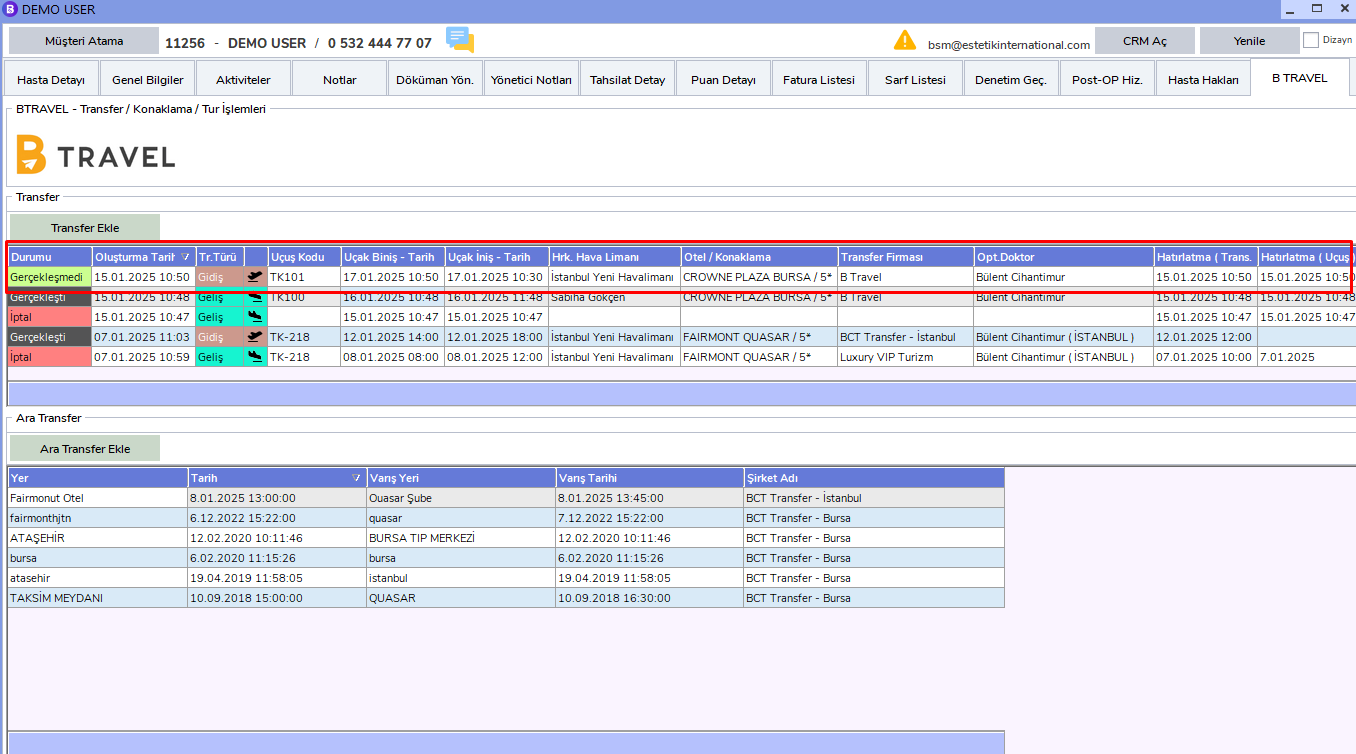
This transfer will also be saved to the Btravel tab like the others.
Updating Transfer Status
To update the status of the transfer you planned, find the related transfer record from the BTravel tab.
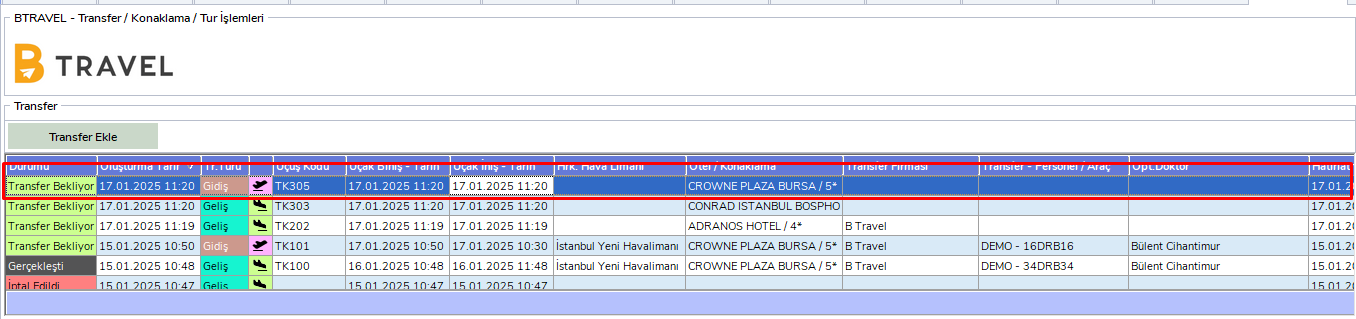
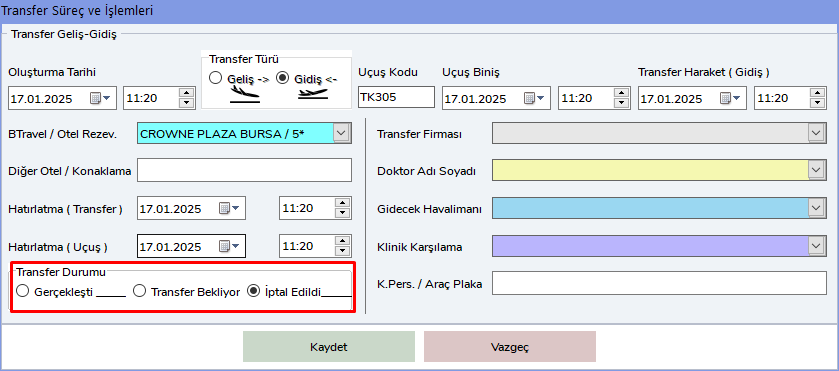
To update the Transfer status of the selected transfer, double-click it. In the window that opens, you can easily update the status from the "Transfer Status" field in the lower left corner.
Alternatively, after selecting the transfer record, you can right-click and update the transfer status from the menu that opens. This operation allows you to quickly change the transfer status.
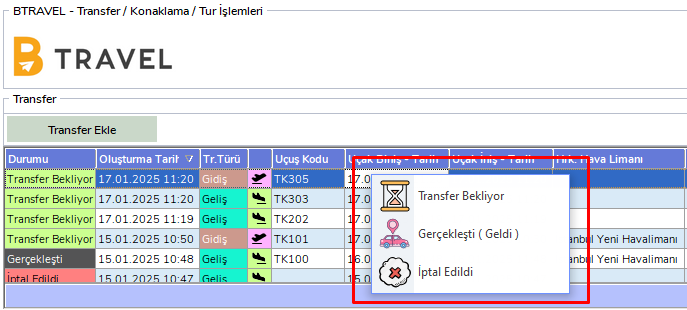
Transfer status options are as follows:
- Completed: The transfer was completed successfully.
- Transfer Waiting: The planned transfer has not yet taken place and is waiting for transfer.
- Canceled: The transfer was completely canceled for previously determined reasons.
With these methods, you can track the transfer status and keep the records in the system up to date by updating them when necessary.
Add Intermediate Transfer
Click the "Add Intermediate Transfer" button on the left side under the Btravel tab.
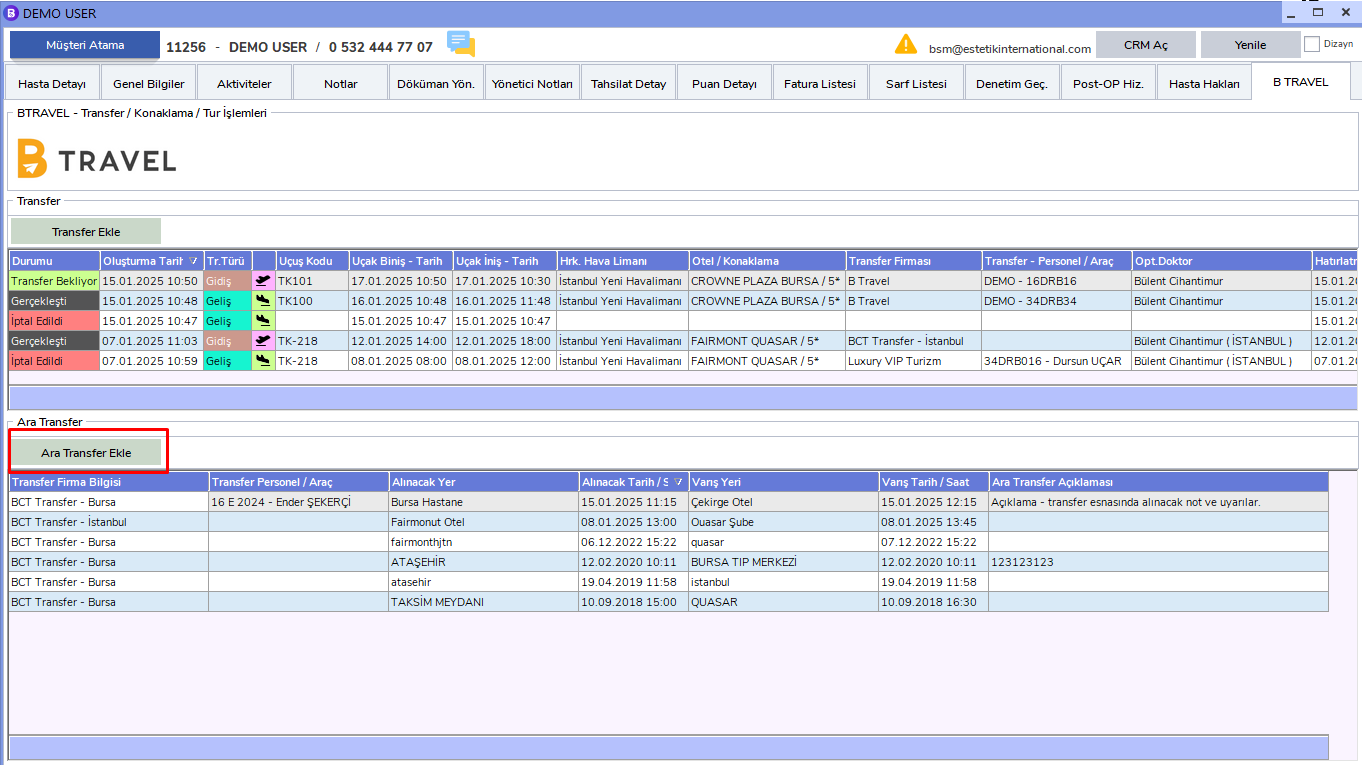
On the screen that opens, enter the information related to the patient's intermediate transfer. This information should include:
- Transfer Company
- Personnel / Vehicle Information
- Pickup Location, Date and Time
- Destination, Date and Time
- Description
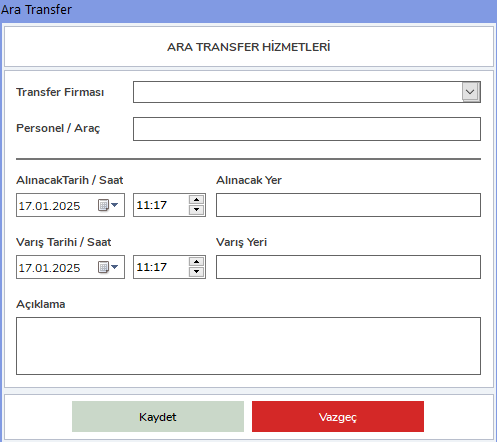
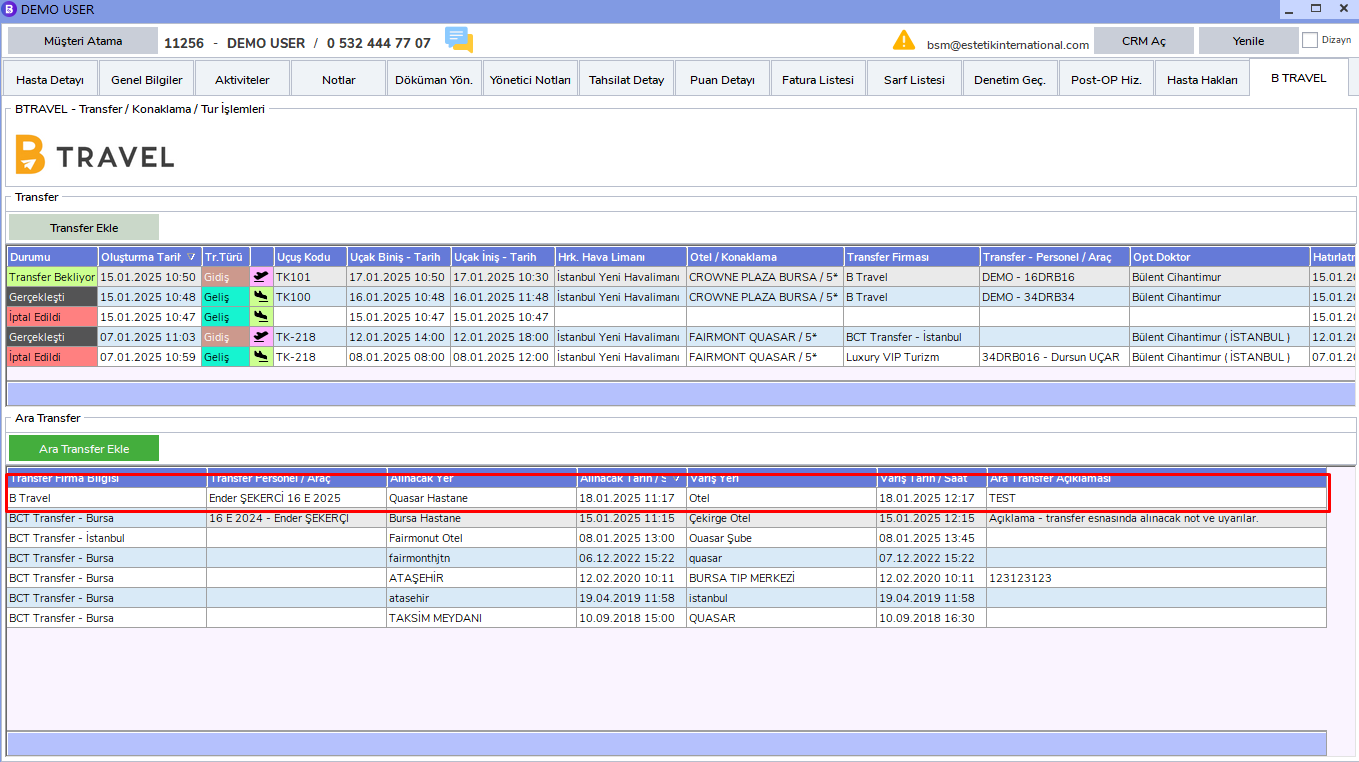
After filling in all required fields, your intermediate transfer plan will be saved to the Btravel tab.
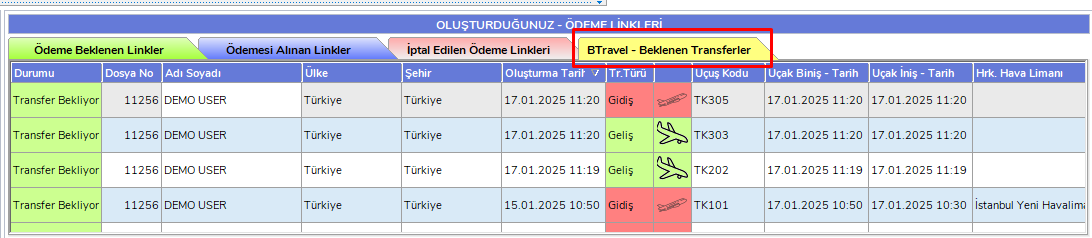
You can view all patients whose status is "Transfer Waiting" under the "BTravel - Expected Transfers" tab on the BCODE AKYS home page.
If you want to view a more detailed report about transfers, you can use the "Manager Reports" tab under the "Sales" menu on the left side.
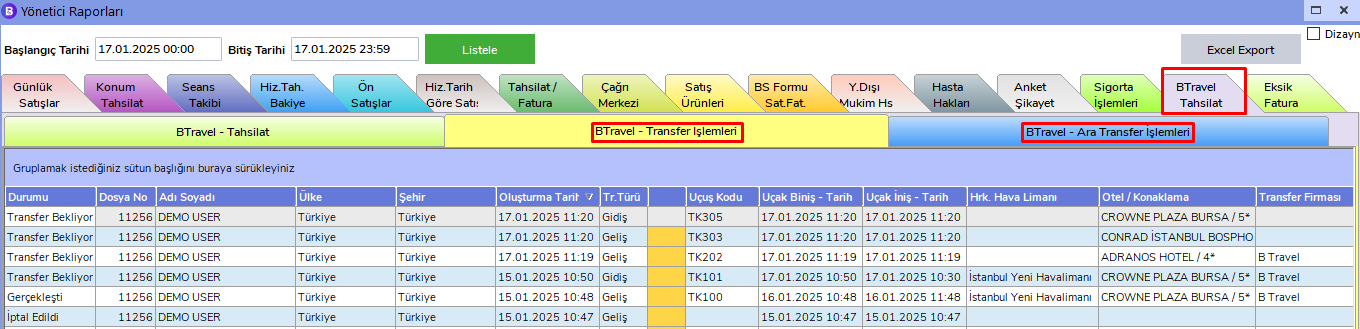
Under the "Btravel Collection" tab, you can view reports of all Completed, Transfer Waiting, and Canceled transfers from the "Btravel - Transfer Operations" and "Travel - Intermediate Transfer Operations" reports.
With these steps, you can easily perform your patient transfer operations. If you have any questions or additional requests, you can contact the technical support team.