BCODE AKYS "Add Consumable Material" Procedure
For the "Add Consumable Material" operation, you must first find the related patient according to the Patient Search procedure.
1. Find Patient
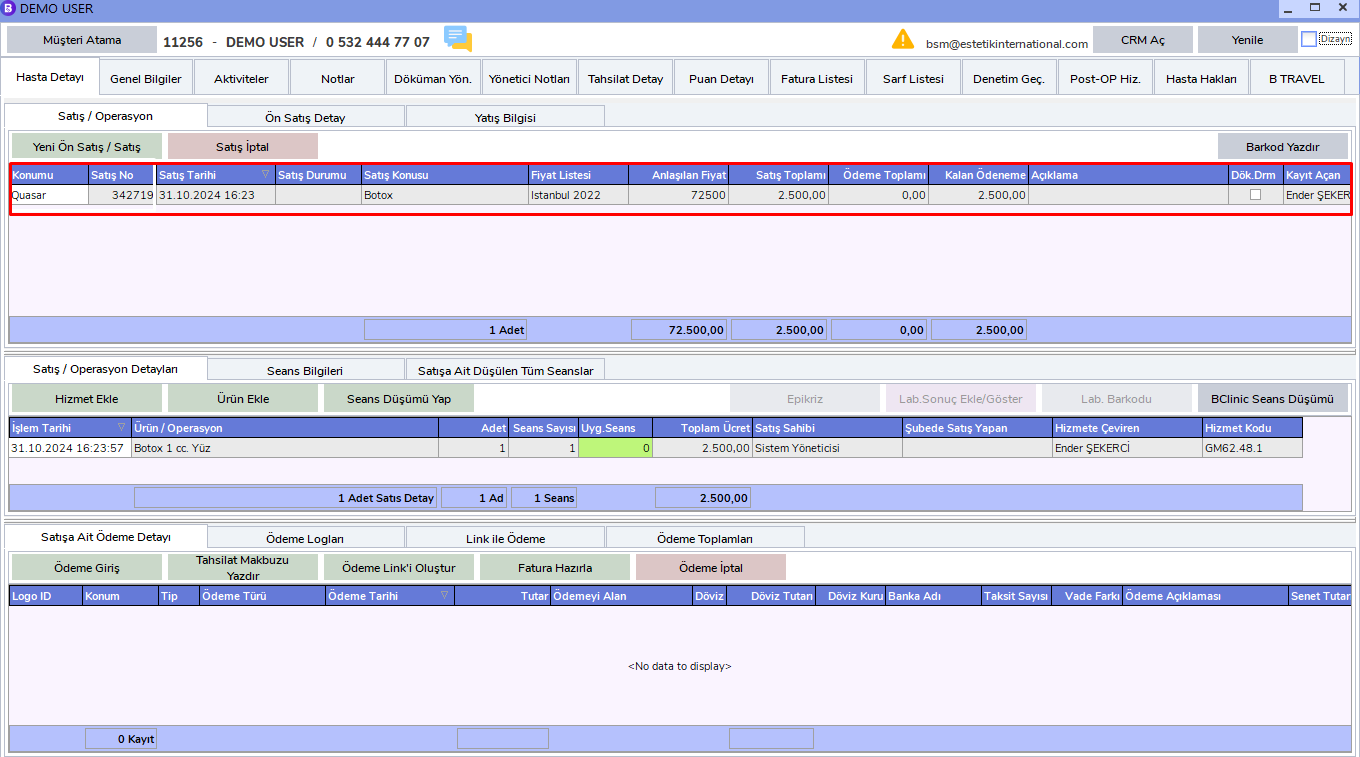
First, perform the patient search to find the related patient. After opening the patient card, select the sale (protocol) to which you will add the consumable.
2. Access the Consumable List
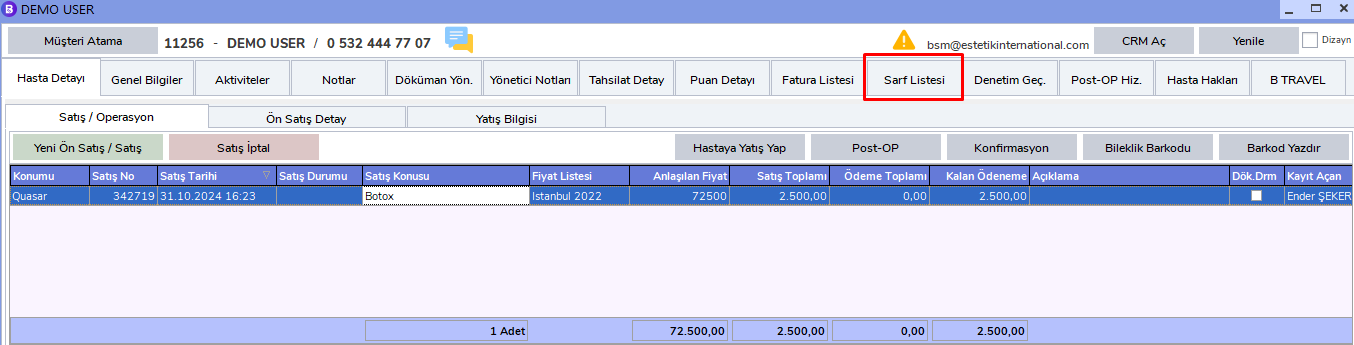
After selecting the related sale, click the "Consumable List" tab in the top menu to view the current consumable materials.
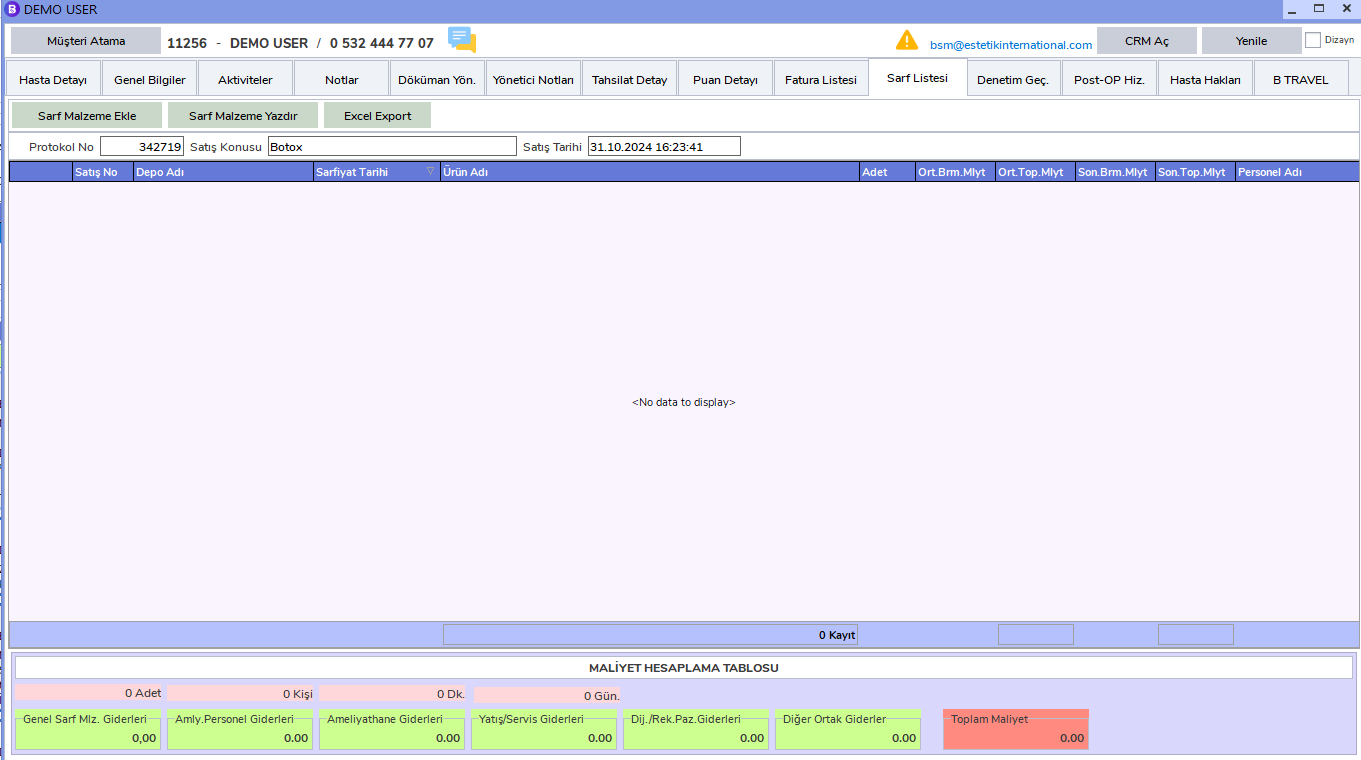
In this area, consumable materials previously added to the related sale will be listed.
3. Add New Consumable Material
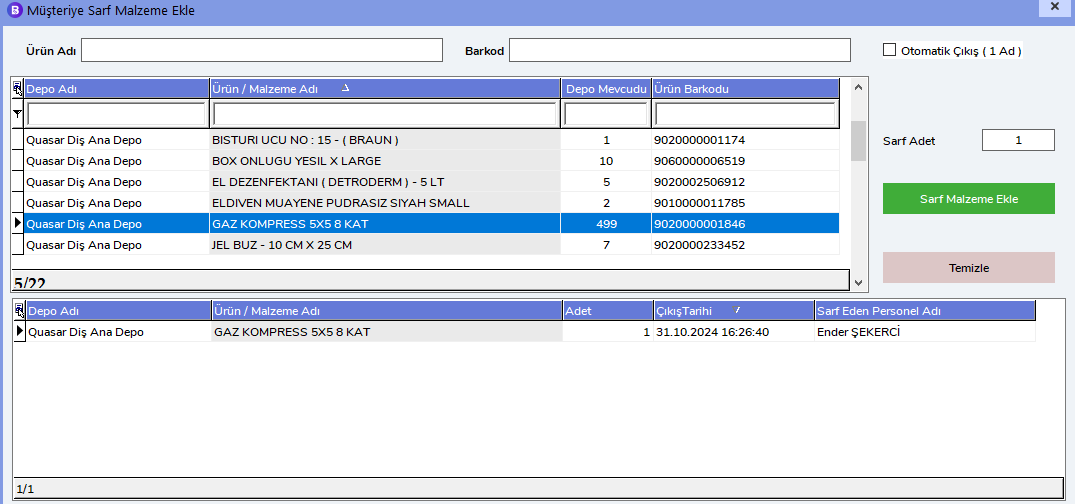
To add a new consumable material, click the "Add Consumable Material" button on the upper left.

4. Filter Consumable Materials
To find the consumable materials you want to add, you can filter by Product / Material name or Product barcode. In this way, you can quickly access the consumable materials you are looking for.
Important Notes
Sales Operations
By default, the most recent sale is automatically selected. However, during all operations, whichever sale will be processed must be selected carefully from the related sale's "Sales/Operation" area.
Service Operations
In service-related operations, the latest service is selected by default. If an operation will be performed for a service, the related service must be selected from the "Sales/Operation Details" area.