Overview
1. General application usage order
A normal user session follows this order:
-
The application is started.
-
If necessary, automatic update control is performed.
-
On the personnel login screen, the user is selected and the password is entered.
-
The daily appointments assigned to the user are displayed.
-
The patient is selected from the appointment card.
-
The patient's open services and remaining session rights are displayed.
-
The service to be applied is selected.
-
The system automatically opens the correct application screen according to service type:
-
Laser epilation
-
Fixed laser epilation
-
Laser epilation package area
-
Laser epilation full body
-
Botox
-
Filling
-
Other services
-
Result information is entered for the applied area or service.
-
If necessary, the application is paused and the pause reason is recorded.
-
If necessary, consumable material issue is performed while the application continues.
-
The session completion button is used.
-
Saved sessions are transferred to the central system.
-
The consumable material/product issue screen opens.
-
Consumable issues are completed.
-
The room cleaning screen is opened.
-
When cleaning is completed or the time expires, the session is closed.
2. Common screen behaviors in the application
2.1. Top information area
The following information is usually displayed on main screens:
-
Branch name
-
Name of the logged-in personnel
-
Name of the selected patient
-
On some screens, the patient's total sales, total collection and debt balance information
-
Elapsed time on the application screen
This information is not written by the user. It comes automatically from selections on the previous screen and system records.

2.2. Operation icons on the right side
Although the number of icons varies by screen, the following common functions exist in the application:
- Main page/Log out from session

- Return to previous screen

- Open the door lock or trigger the door system

- Consumable material issue

- Pause application

- Resume application

- View past sessions

- Complete application

The visibility of icons depends on administrator settings and the current screen.
2.3. On-screen keyboard
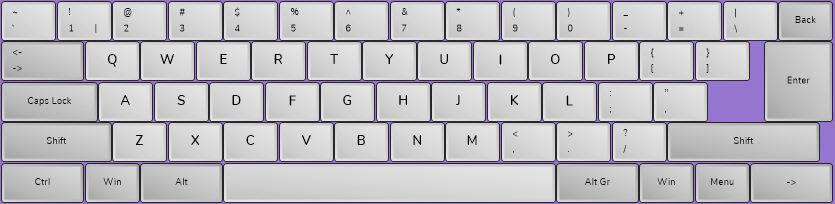
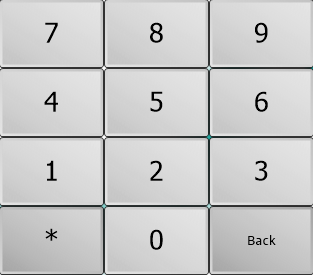
When text or number entry fields are touched, the on-screen keyboard opens.
-
A numeric keyboard is displayed in the password field.
-
A full keyboard is displayed in description fields.
-
A numeric keyboard is displayed in fields such as head, Joule, shot count, quantity and remaining dose.
-
When the field is left, the keyboard is hidden automatically.
2.4. Meaning of colors
Colors in area and service indicators on the application screen describe operation status:
-
Green: The service or area is available; operation entry can be made.
-
Red: Operation entry has been made for the related area in this session. Re-selection is blocked.
-
Light gray: Shows that application entry has been made for the service on the card/list.
-
Blinking debt balance: The patient has a non-zero debt balance.
2.5. Session indicator
A value in applied/total format is shown next to services.
Example:
0/4: None of the four session rights has been used.

2/5: Two of the five session rights have been used.

6/6: All sessions have been used.

1/4: When a session is applied, the related area becomes red.

When the applied session count of a service reaches the total session count, a new record cannot be made.