BCODE AKYS "Warehouse Material & Product Request" Procedure
You can request materials or products from the main warehouse you are connected to for your own warehouse.
Step 1: Open the Warehouse Material & Product Request Tab
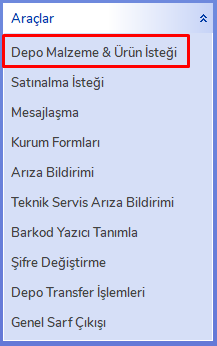
Click the "Warehouse Material & Product Request" tab in the Tools menu on the left side.
Step 2: Select the Warehouse for the Request
A window like the one below will appear.
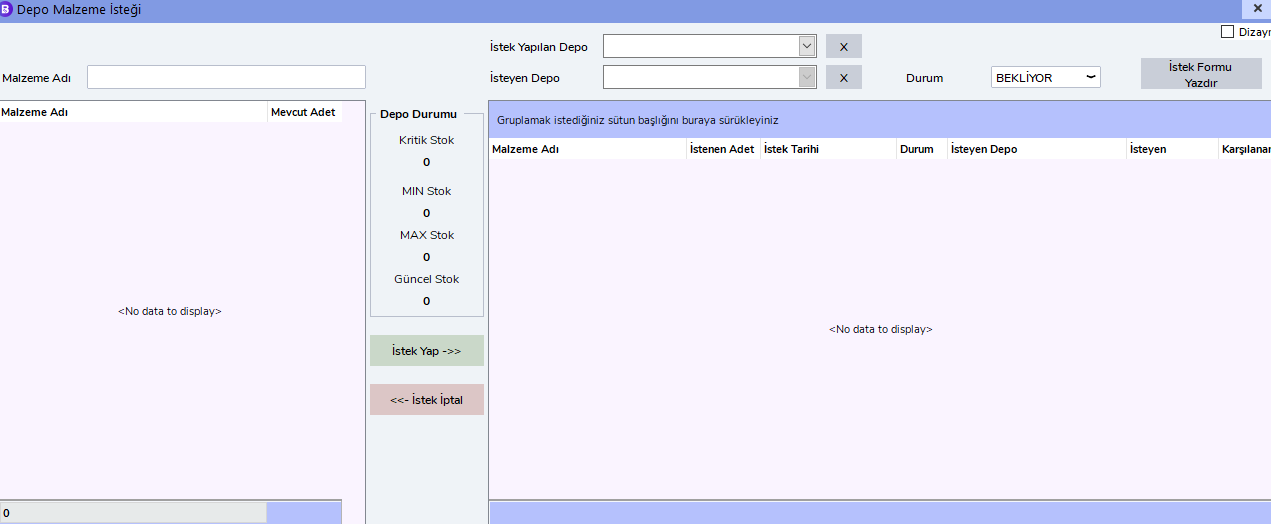
- Requested Warehouse: The main warehouse from which you will request materials.
- Requesting Warehouse: Your own warehouse that will make the request.
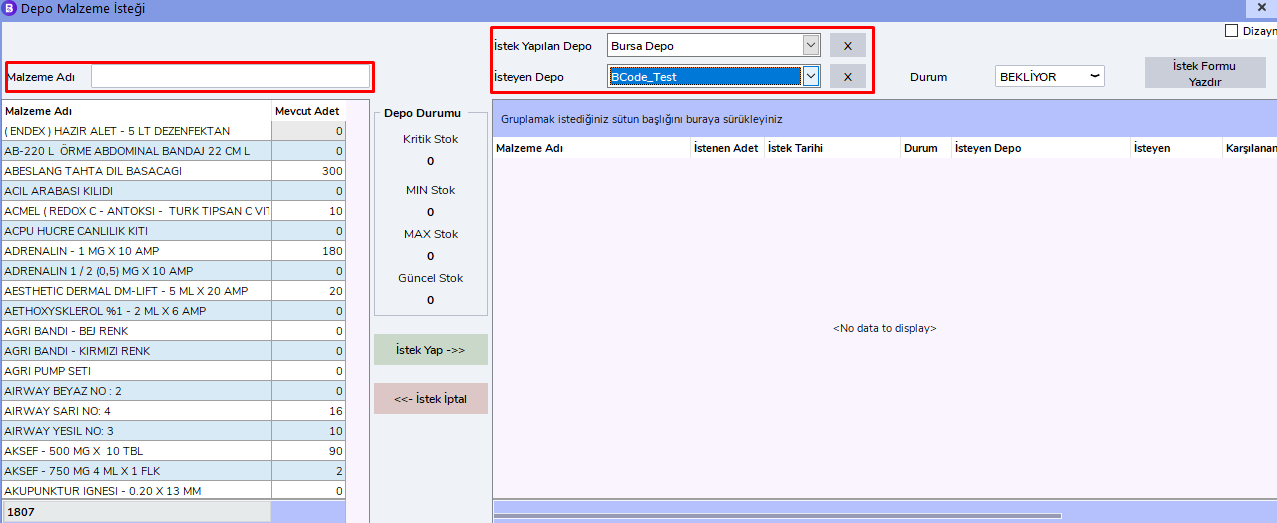
- Search Material: Enter the name of the material or product you want to request in this field.
Step 3: Search and Select Material
As a result of the search, the material will appear filtered.
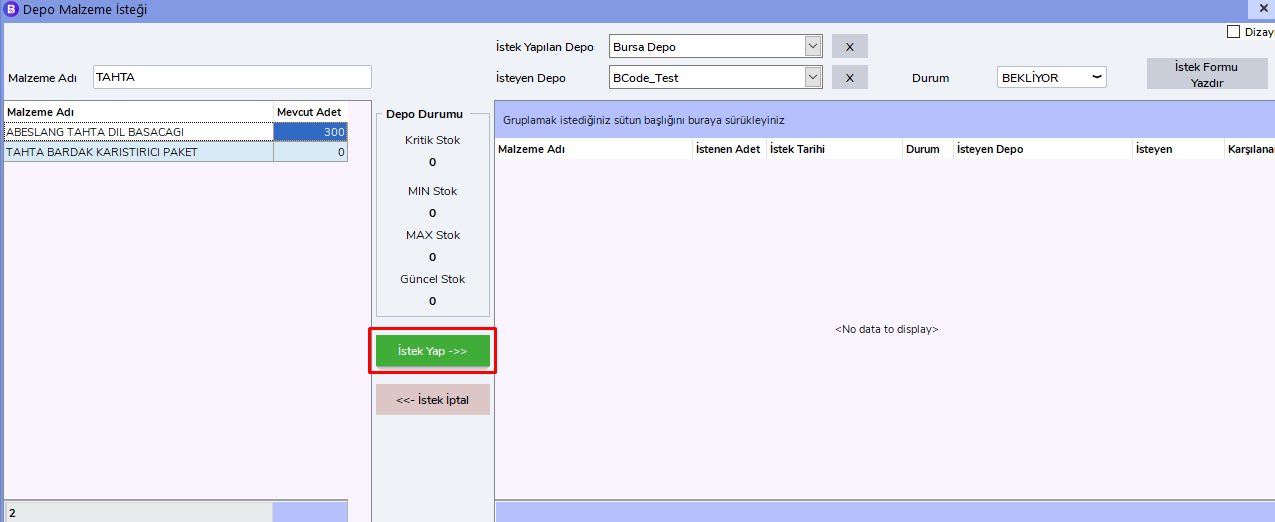
After selecting the related material, click the "Make Request" button.
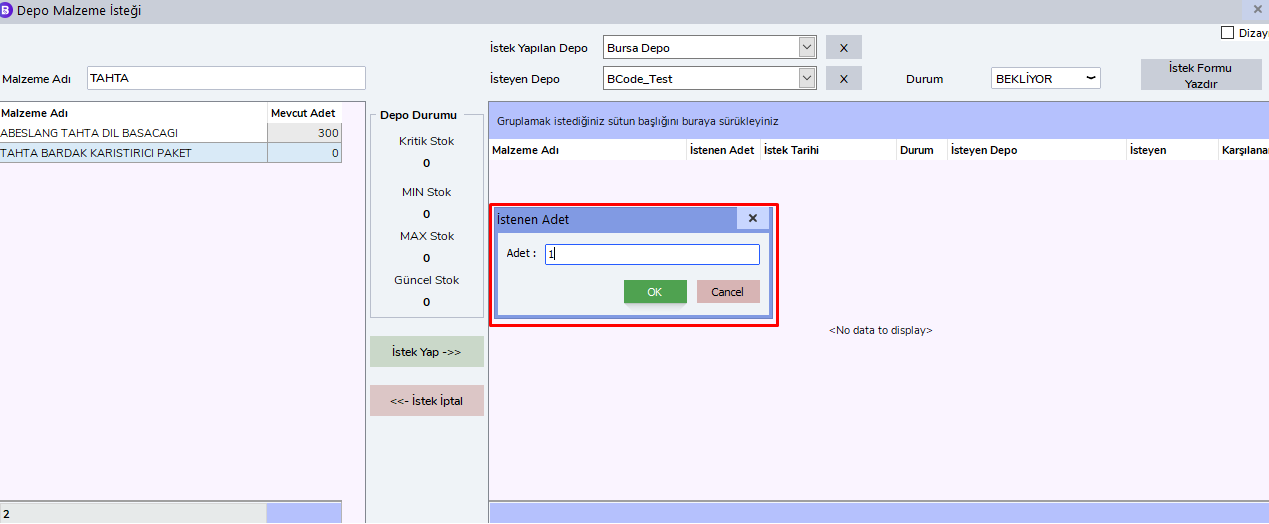
Enter the quantity of the material you will request and click the "OK" button.
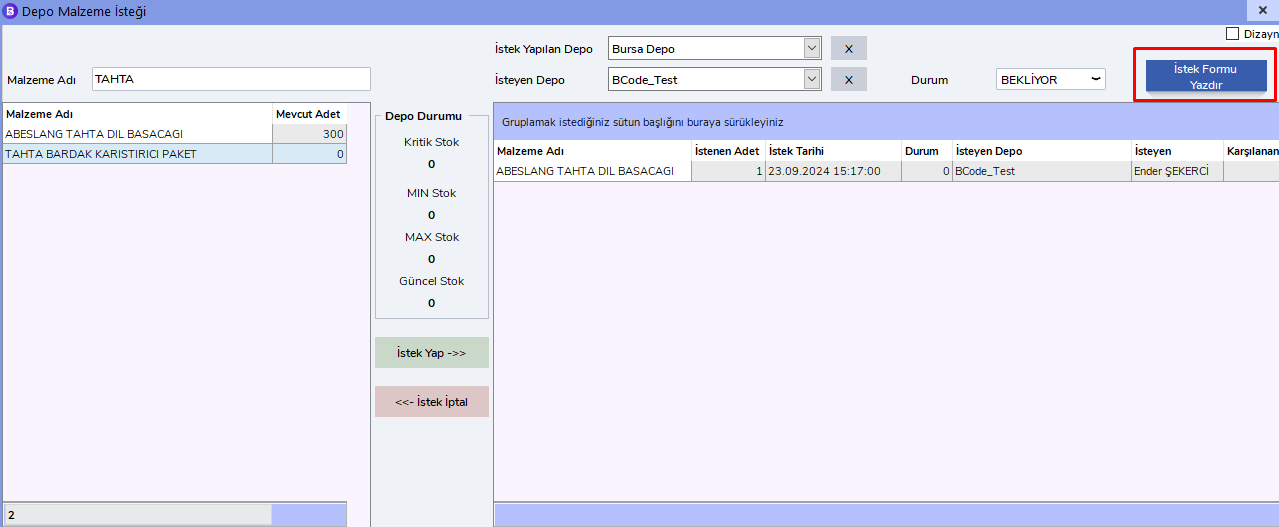
Note:
You can request more than one material. After completing all your requests, you can click the "Print Request Form" button at the top right to print the form.
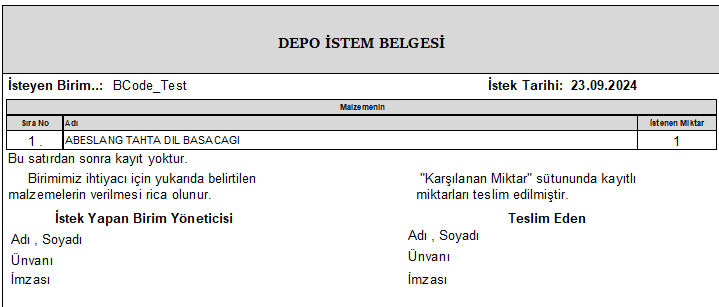
Step 4: Cancel Incorrectly Added Material
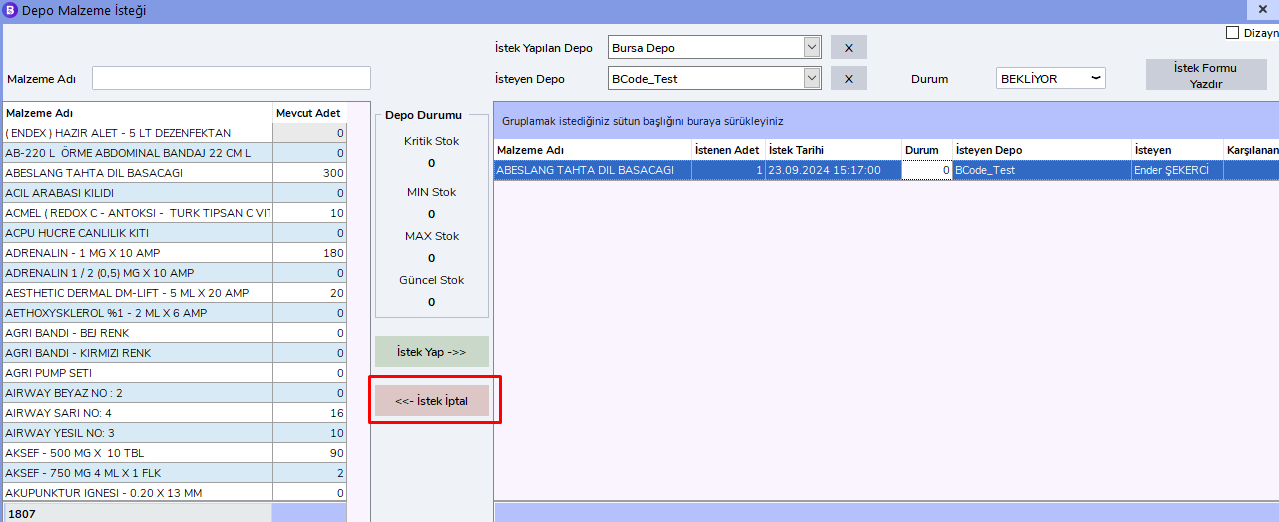
You can cancel a material that you added incorrectly or want to remove by selecting it from the list on the right side and clicking the "Cancel Request" button.