BCODE AKYS "Internal Warehouse Transfer Operations" Procedure
Step 1: Open the Warehouse Transfer Operations Tab
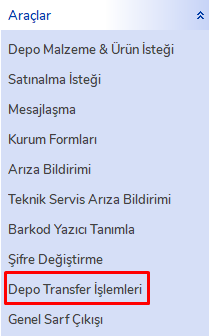
To transfer between warehouses within the institution, click the "Warehouse Transfer Operations" tab under the Tools menu on the left side.
Material Request Creation Steps
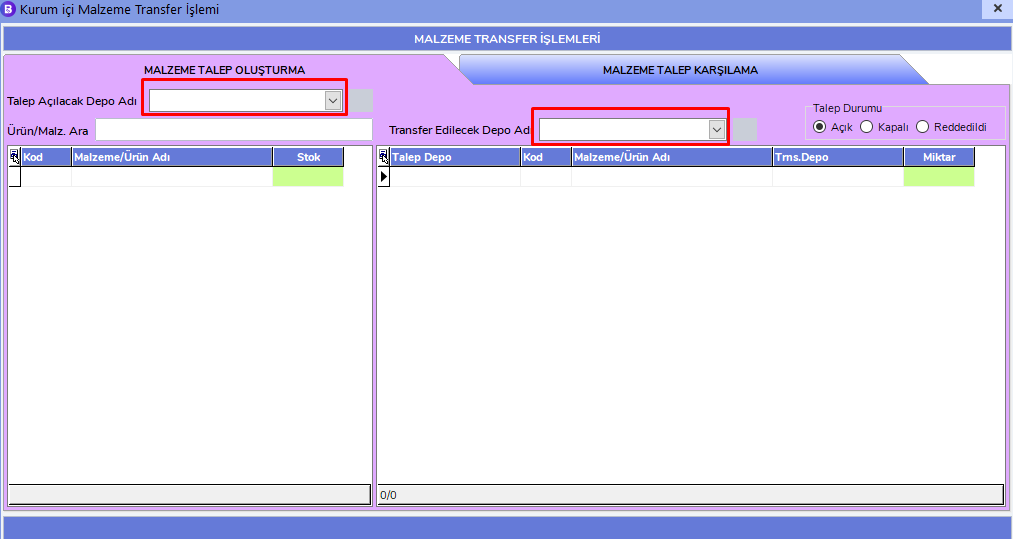
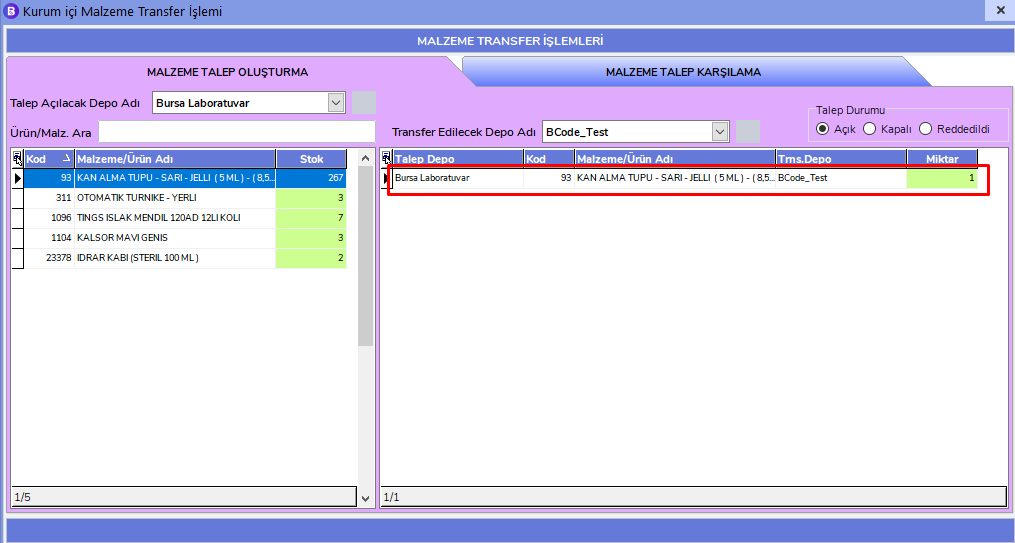
- In the window that opens, fill in the fields marked in red.
- In the "Warehouse to Open Request" field, select the warehouse from which you will make the request.
- In the "Warehouse to Transfer From" field, select the warehouse from which you want the transfer.
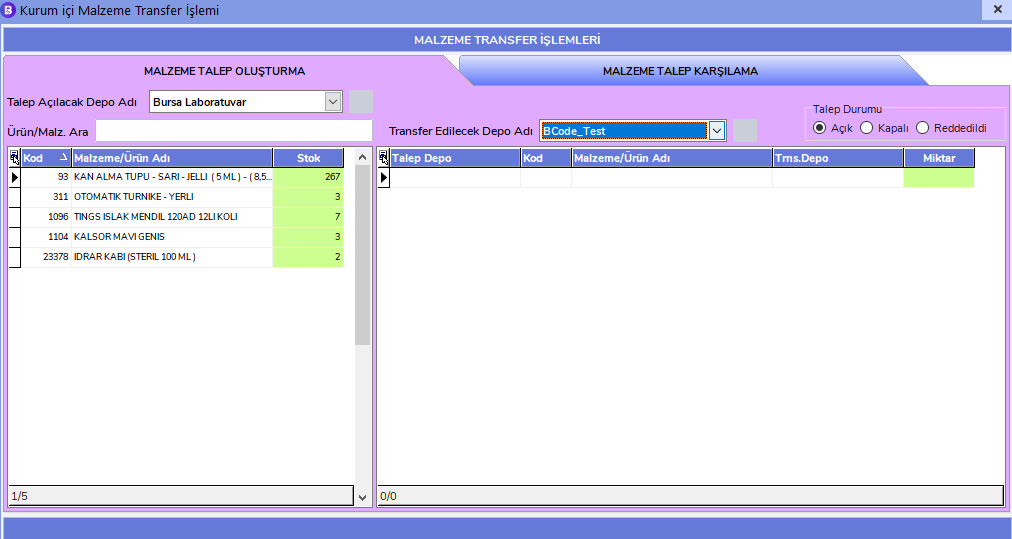
- Enter the product you want in the "Search Product / Material" field. If the product is available in the warehouse from which you want to transfer, it will appear with the stock quantity.
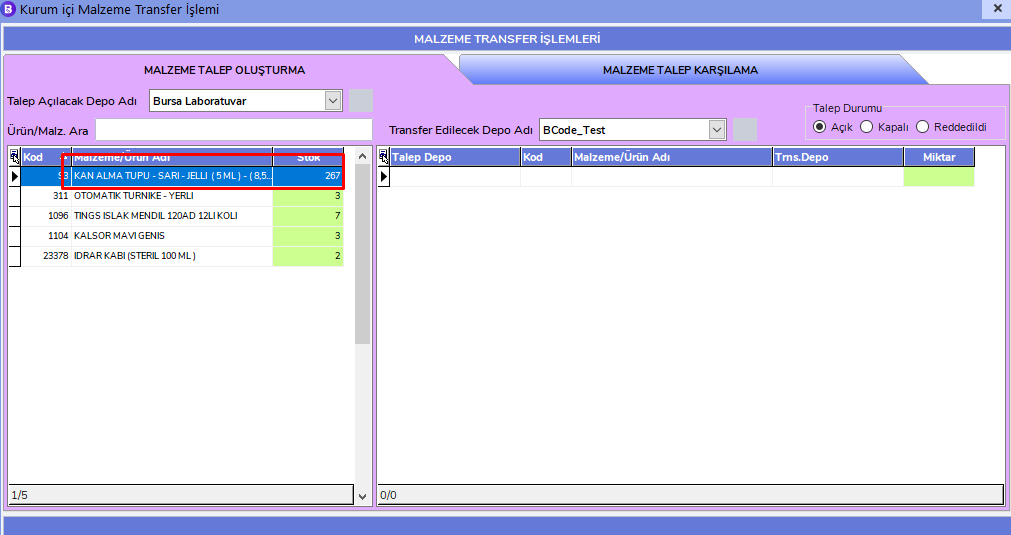
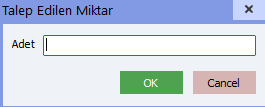
- After finding your product, double-click the related product and enter the quantity you want.
- The products you selected will be added to the list marked in red on the right side.
Material Request Fulfillment Steps
- To fulfill created requests, click the Material Request Fulfillment tab.
- From the Warehouse Awaiting Approval field, select the warehouse for which you are authorized.
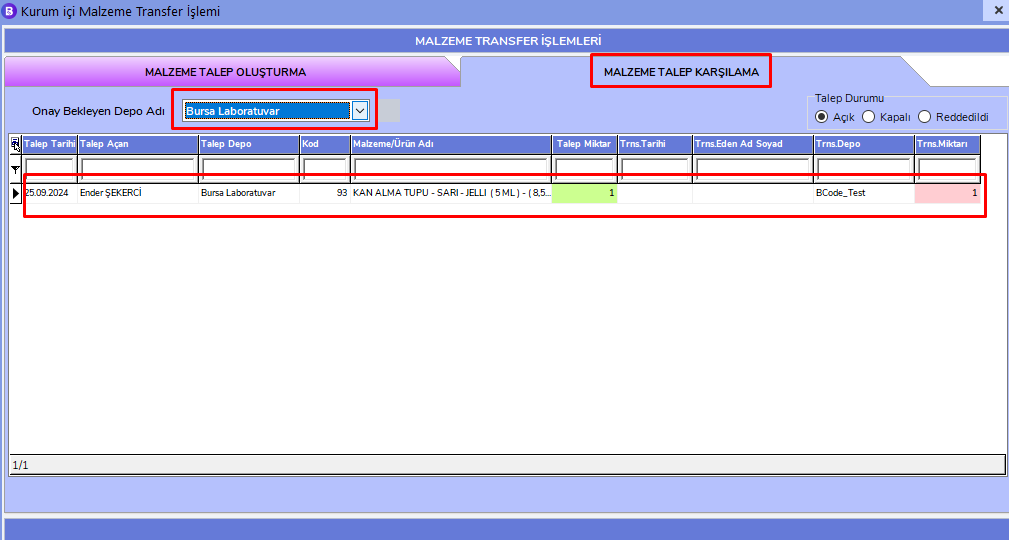
- All pending requests will appear.
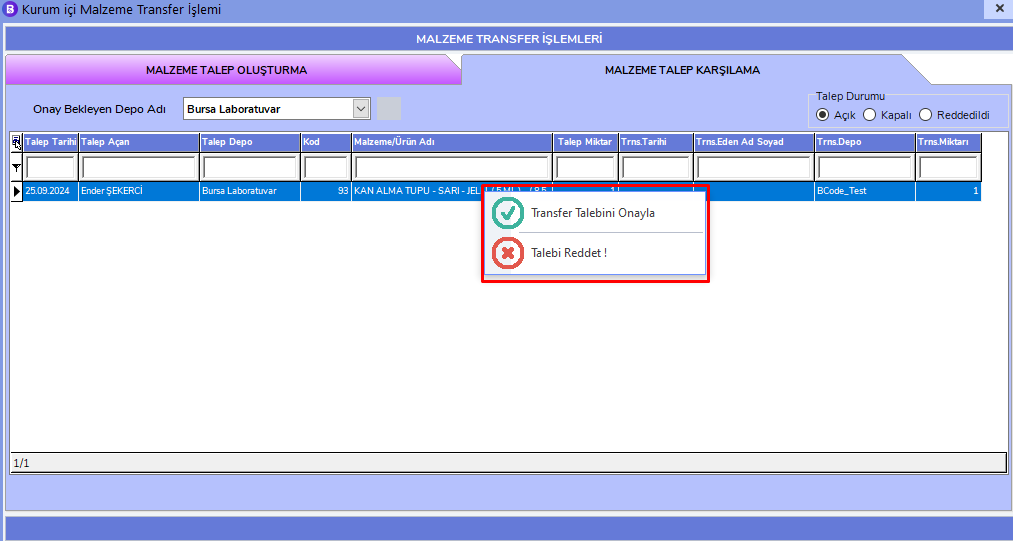
- To fulfill requests, right-click the related product.
-
Select either "Approve Transfer Request" or "Reject Request!".
-
When you give Approval, the related product in your warehouse will be transferred from your stock to the requesting warehouse in the requested quantity.
- If you Reject, no stock update will be made.