BCODE AKYS "Product & Material Management" Procedure
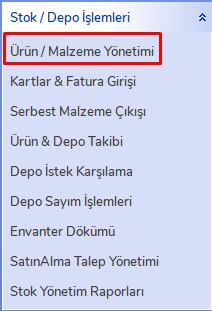
To perform Product & Material Management operations in BCODE AKYS, click the "Product / Material Management" tab under the Stock / Warehouse Operations menu on the left side.
View Product and Material Cards
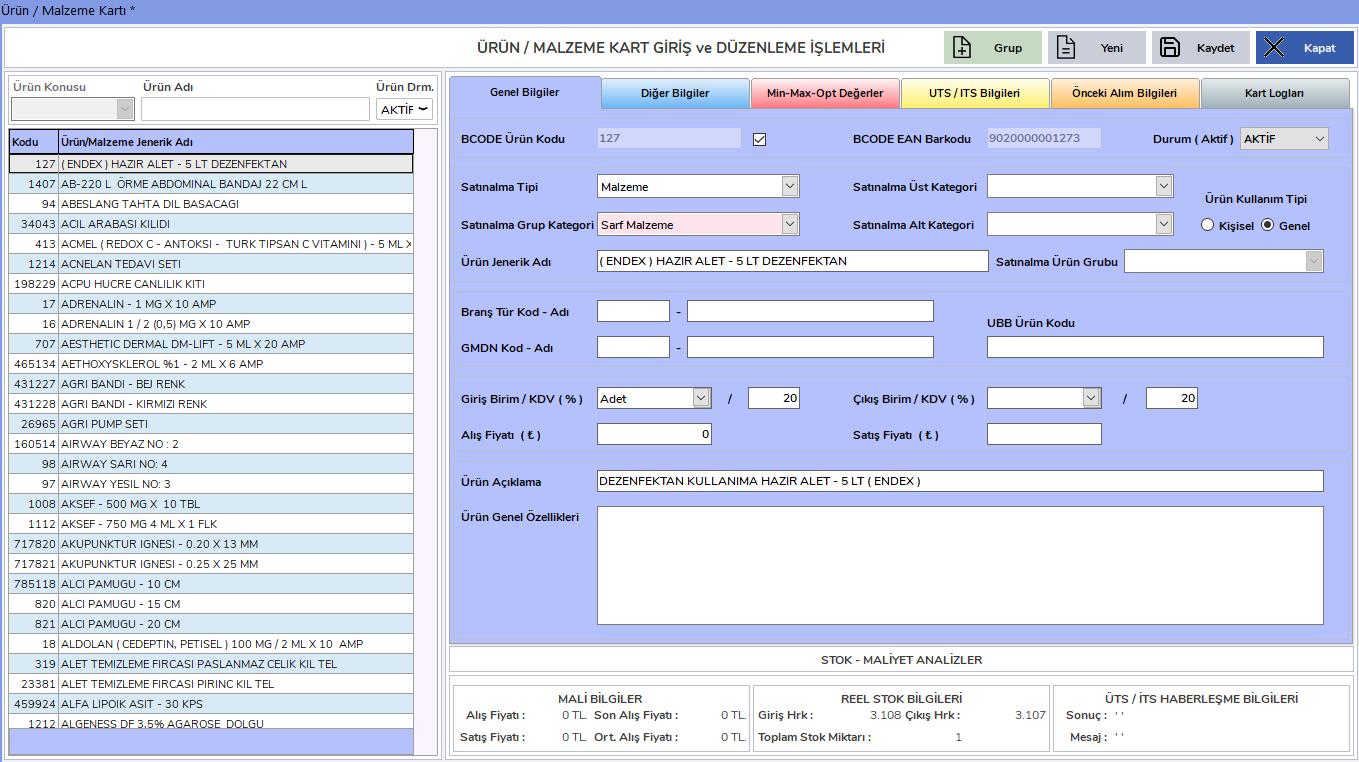
In the window that opens, you can view all passive and active product & material cards and search by product name.
General Information
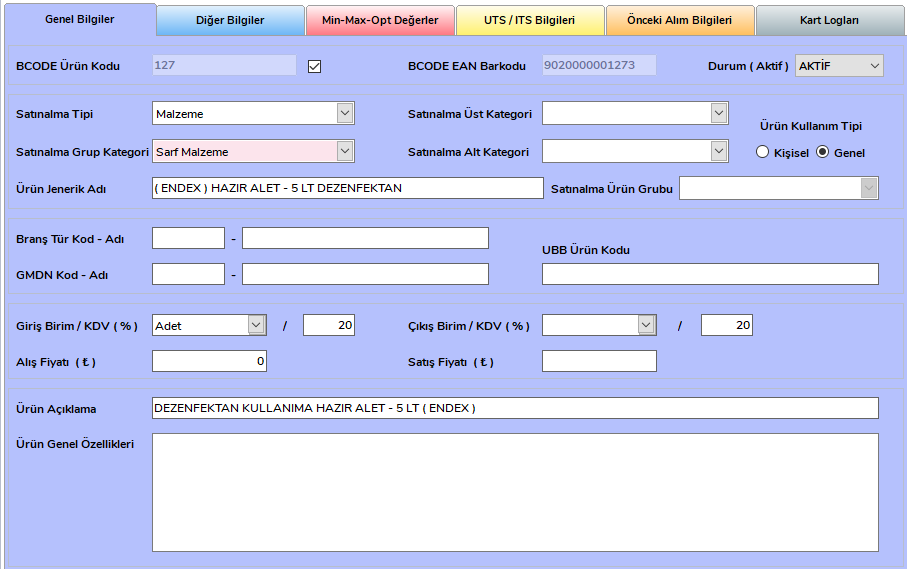
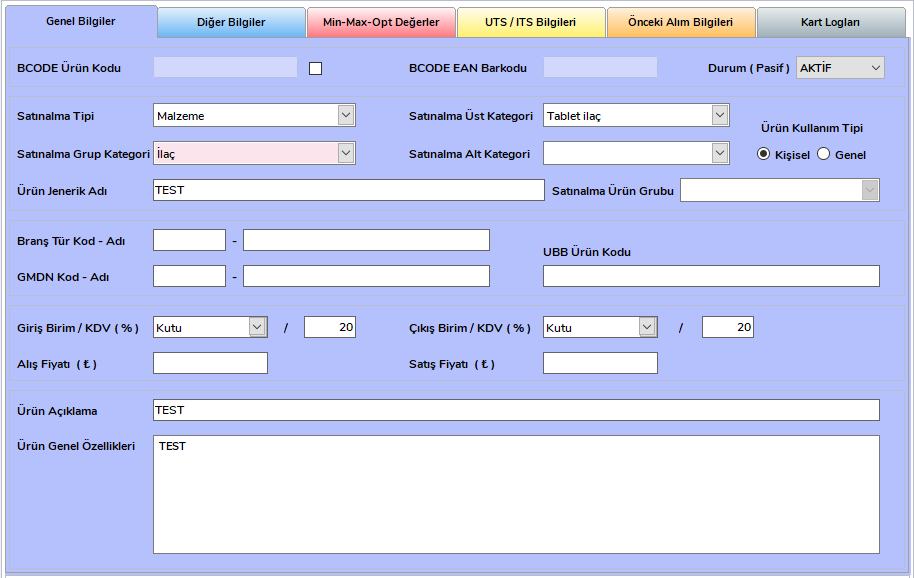
You can access information about the product and material from the General Information tab.
Other Information
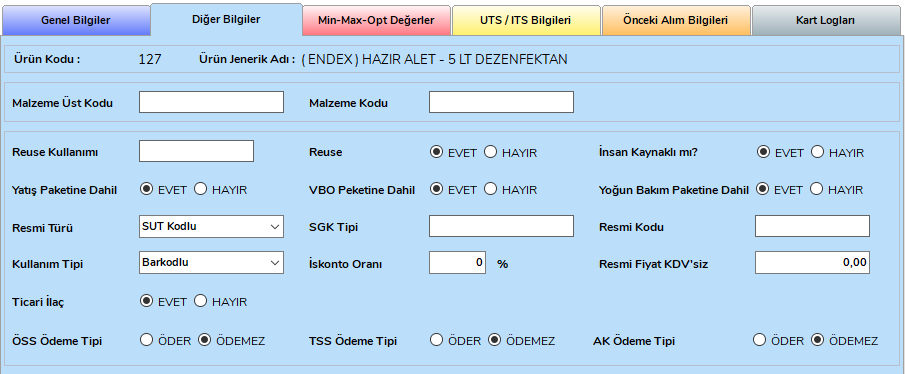
You can access additional information about the product and material from the Other Information tab.
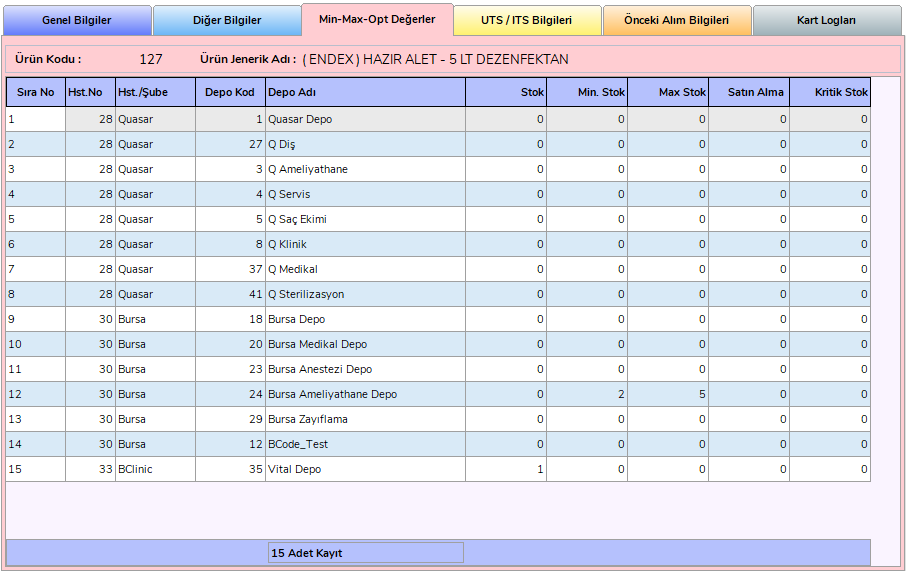
Min-Max Opt Values
In this tab, you can update Minimum and Maximum stock quantities for all warehouses in the locations. You can make product or material stock tracking easier by using these stock values on the reporting screen.
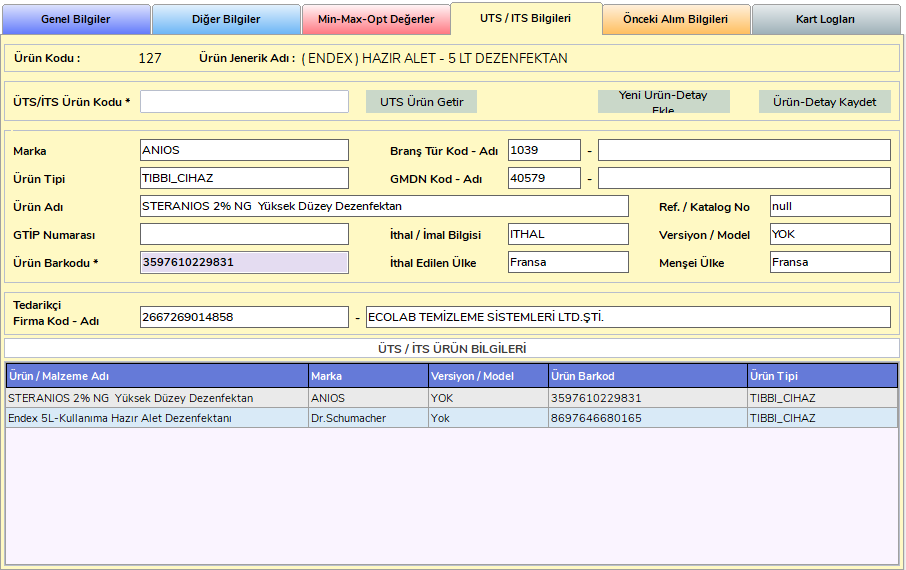
UTS / ITS Information
You can access UTS / ITS information about the product and material from this tab.
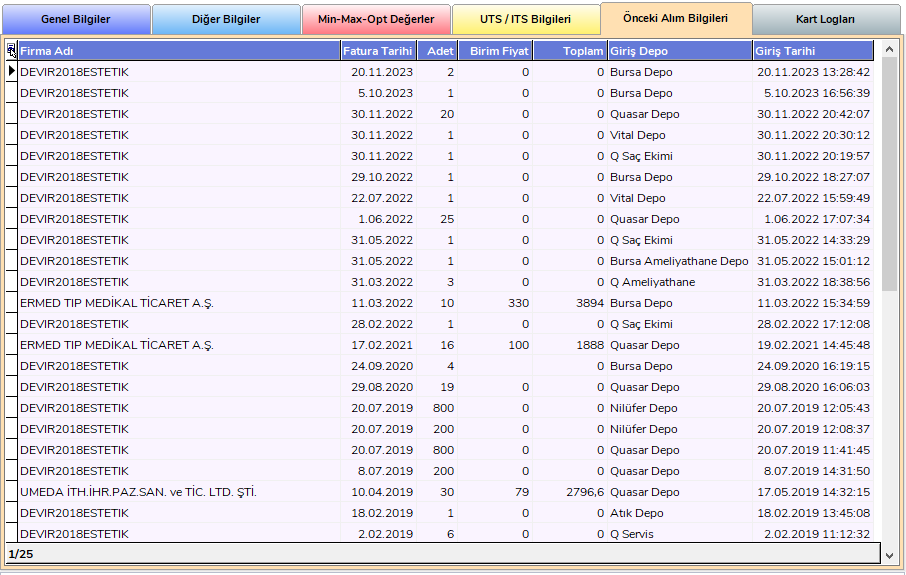
Previous Purchase Information
In the Previous Purchase Information tab, you can access the past purchase information of the product and material.
Create a New Product or Material Card
To create a new product or material card, click the New button marked in red.
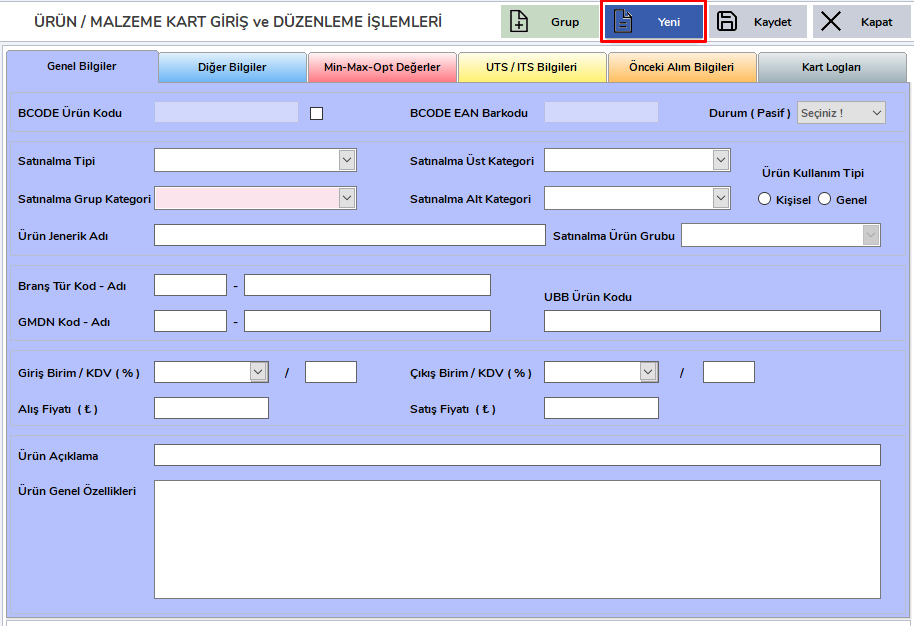
A new product or material card with example fields filled in appears as follows:
Note:
Before creating a new product or material card, make sure the product or material card has not been opened before to prevent duplicate records.