BCODE AKYS "Pre-Sales - Sales" Procedure
Selecting a New Patient or an Existing Patient
If the patient is new, first create the patient card from the "New Customer Card" tab. You can click here to go to the New Patient Registration procedure.
If the patient already exists, find the related patient from Patient Search.
Step 1: Open the Patient Card and click the Patient Detail tab
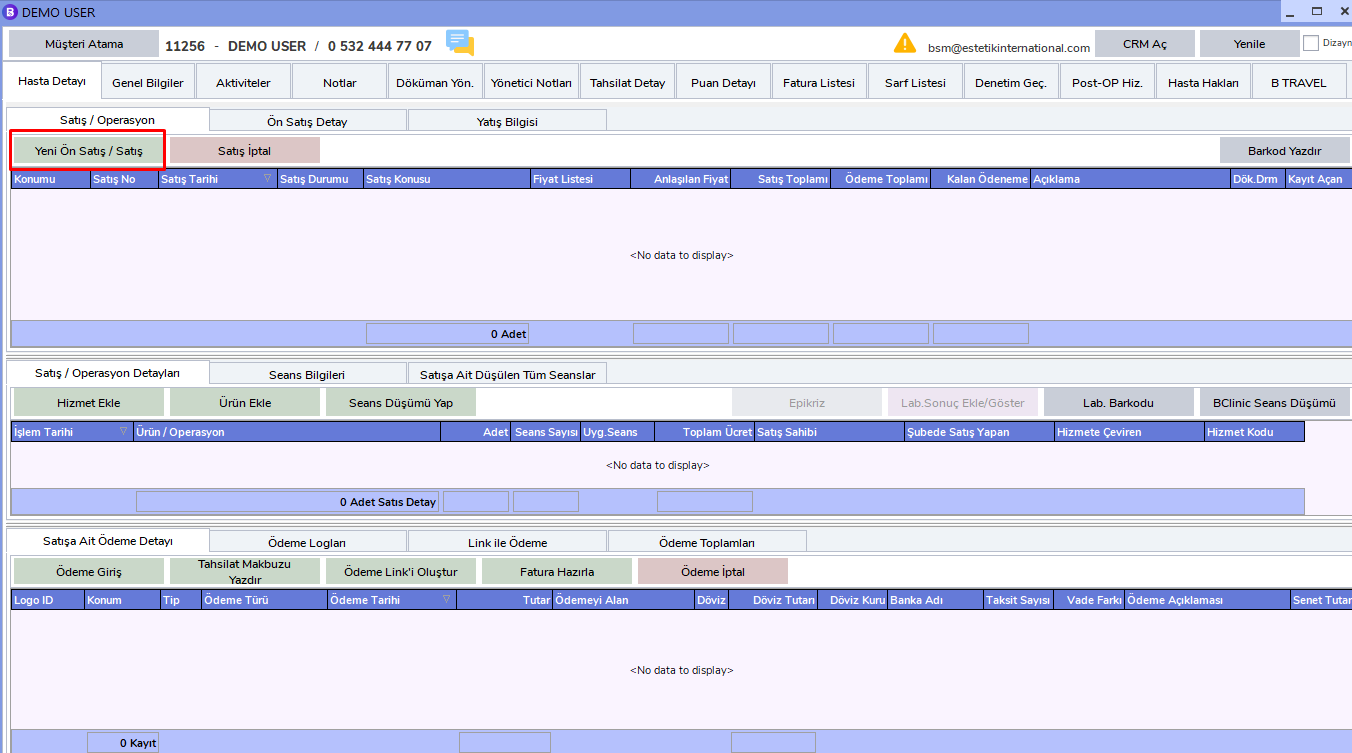
After finding the patient, click the "Pre-Sales / Sales" button marked in red in the image.
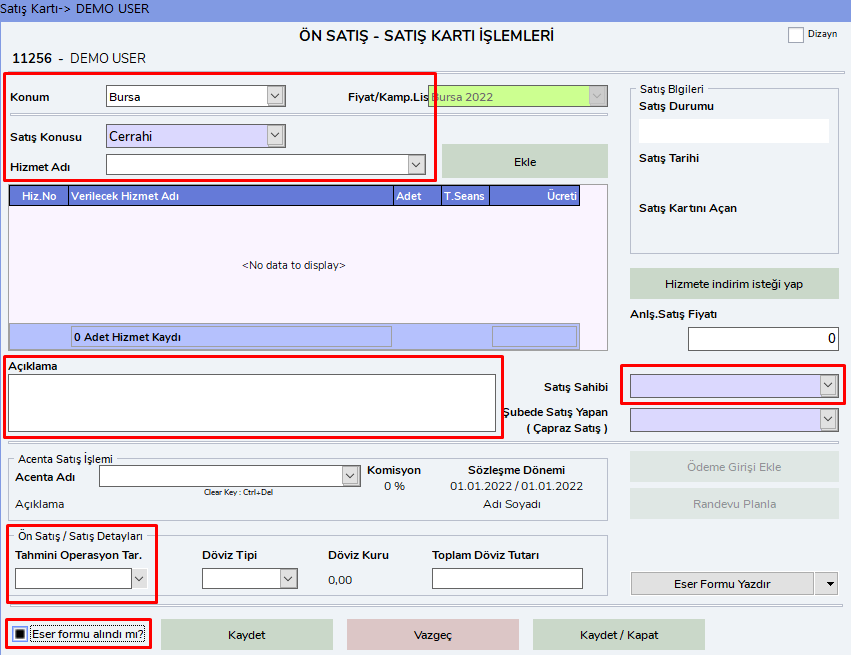
Filling in Sales and Service Information
The sections marked in red are important. Correct information must be entered carefully in these fields. Fields that must be filled in:
- Location: The location where the patient will be registered.
- Sales Subject: The subject for which the sale was made.
- Service Name: The name of the service provided to the patient.
- Agreed Sales Price: The agreed amount of the service.
- Description: Additional explanations related to the sale.
- Sales Owner: The person who made the sale.
- Estimated Operation Date: The planned date of the operation.
- Eser Form: The Eser form is mandatory and must be filled in carefully.
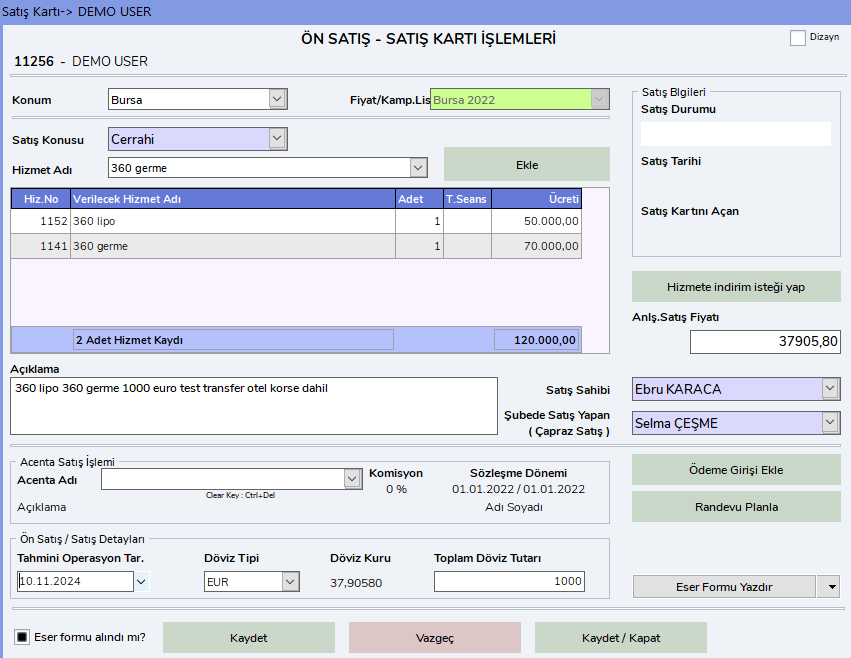
A completed Pre-Sales / Sales Card is shown below as an example:
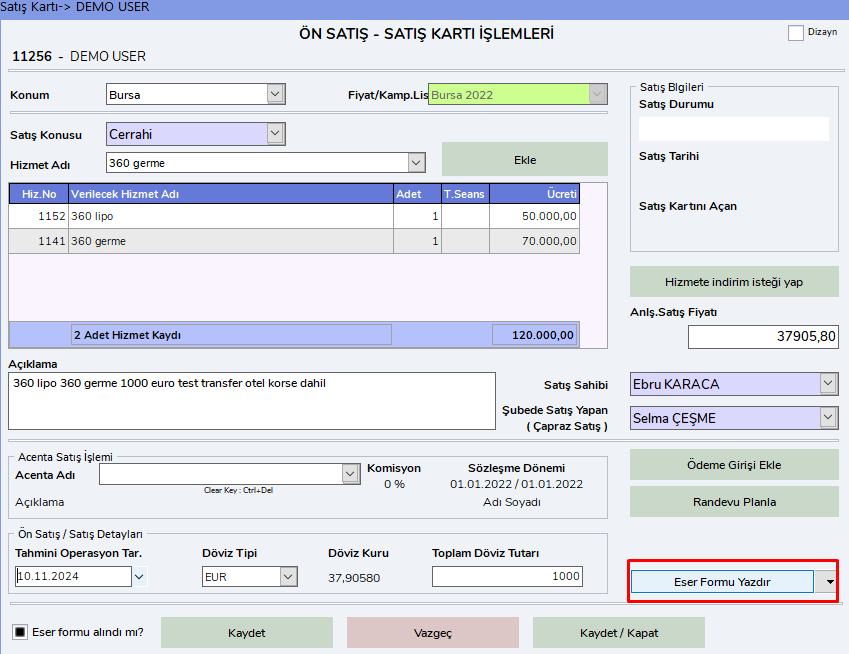
Eser Form Operations
- You can follow the steps below to print the Eser form.
The dotted fields on the form must be filled in.
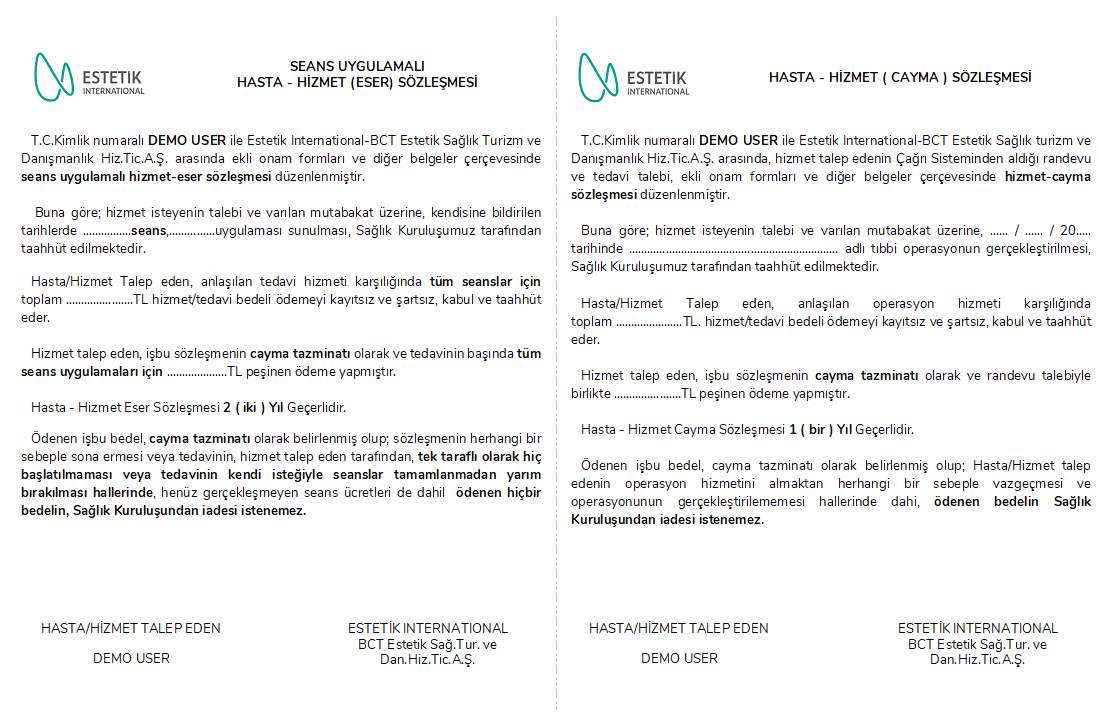
After the form is filled in, it must be scanned and uploaded to the system from the Document Management tab.
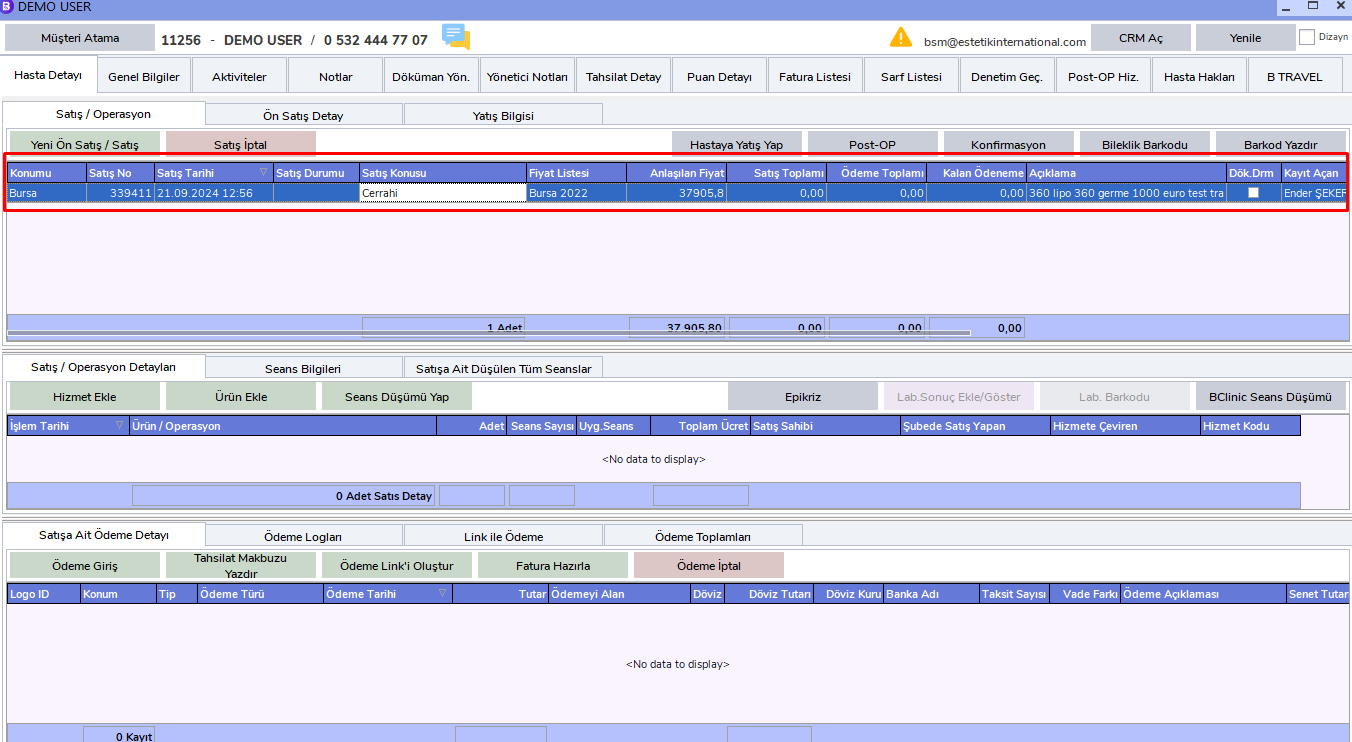
The entered Pre-Sales / Sales record will be displayed in a sub-tab in the related patient's record.
Example:
Sales Operations for Surgical Operation
The sales subject can be Surgery, Hotels, Sales Products, Transfer, or Laboratory. When making a sale, pay attention to the following locations:
- Surgery, Sales Products, Laboratory: The location must be entered for the clinic where the patient receives service.
- Hotels and Transfers: If they were charged from BTravel POS, the location must be entered as "BTravel".
- Only operations belonging to Bulent Cihantimur must have the location entered as "DoctorB".