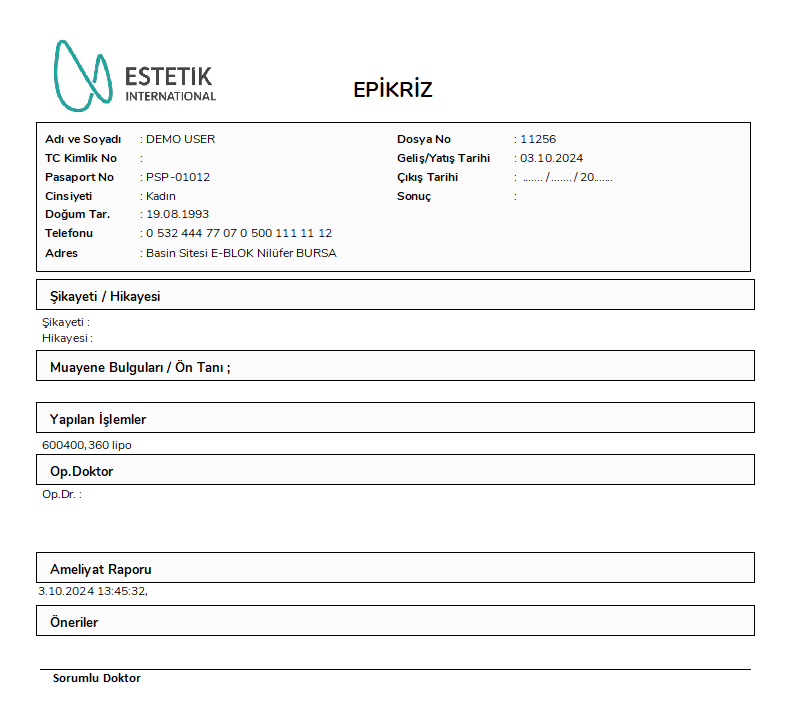
BCODE AKYS "Doctor / Epicrisis" Procedure
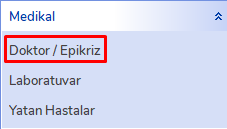
To perform epicrisis-related operations through BCODE AKYS, click the "Doctor / Epicrisis" tab under the "Medical" menu on the left side.
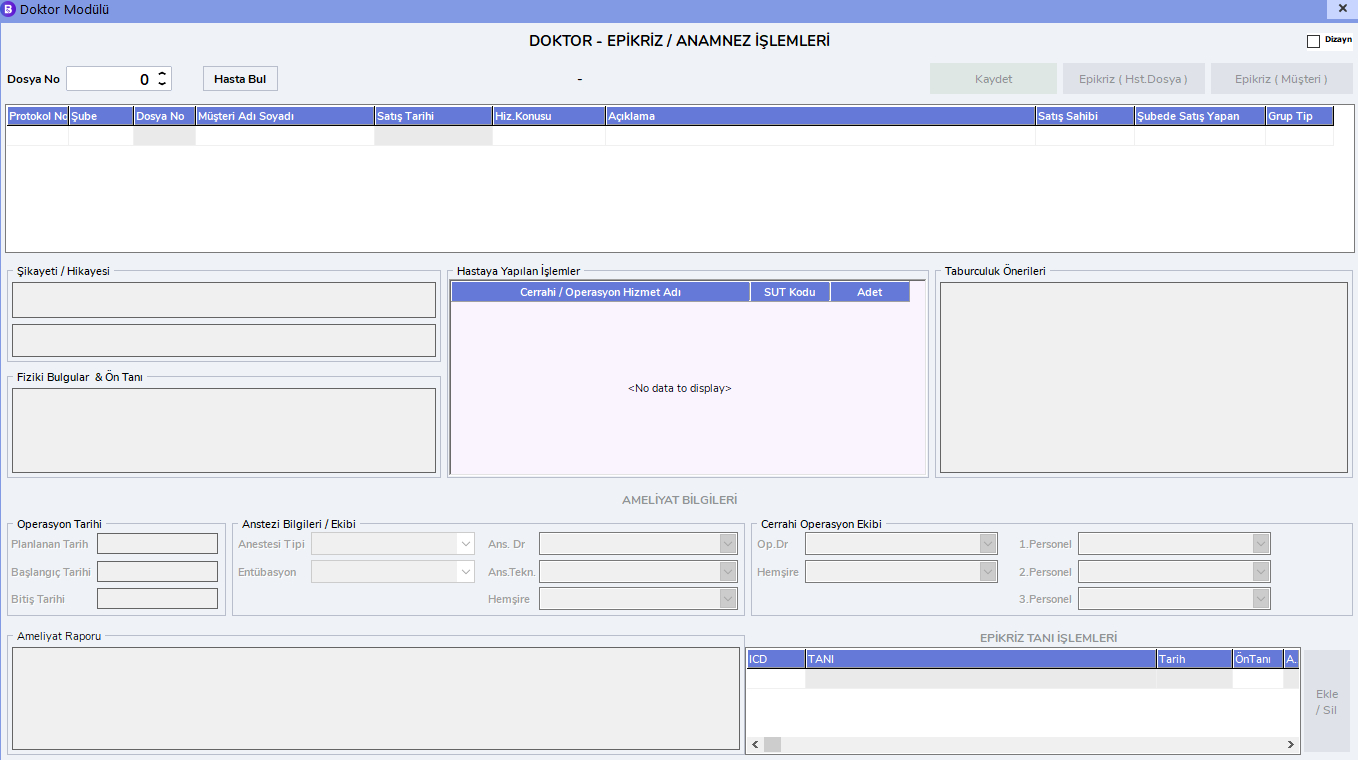
Doctor Module Screen
With this operation, the Doctor Module window will open.
To perform epicrisis operations for a patient, enter the patient's file number in the "File No" field and press Enter to quickly access the patient's information.
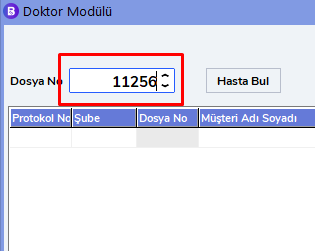
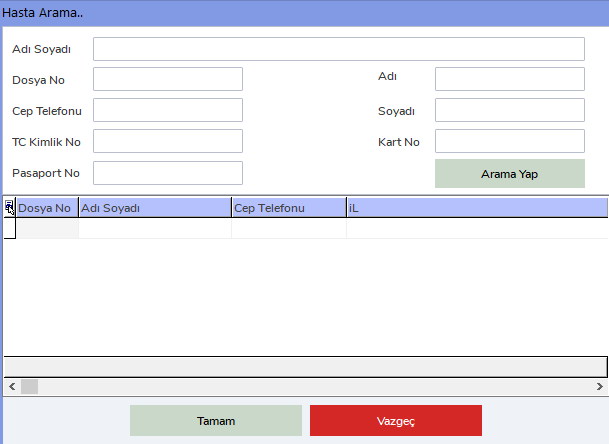
You can also use the "Find Patient" button to search for the patient in detail.
Protocols and Services
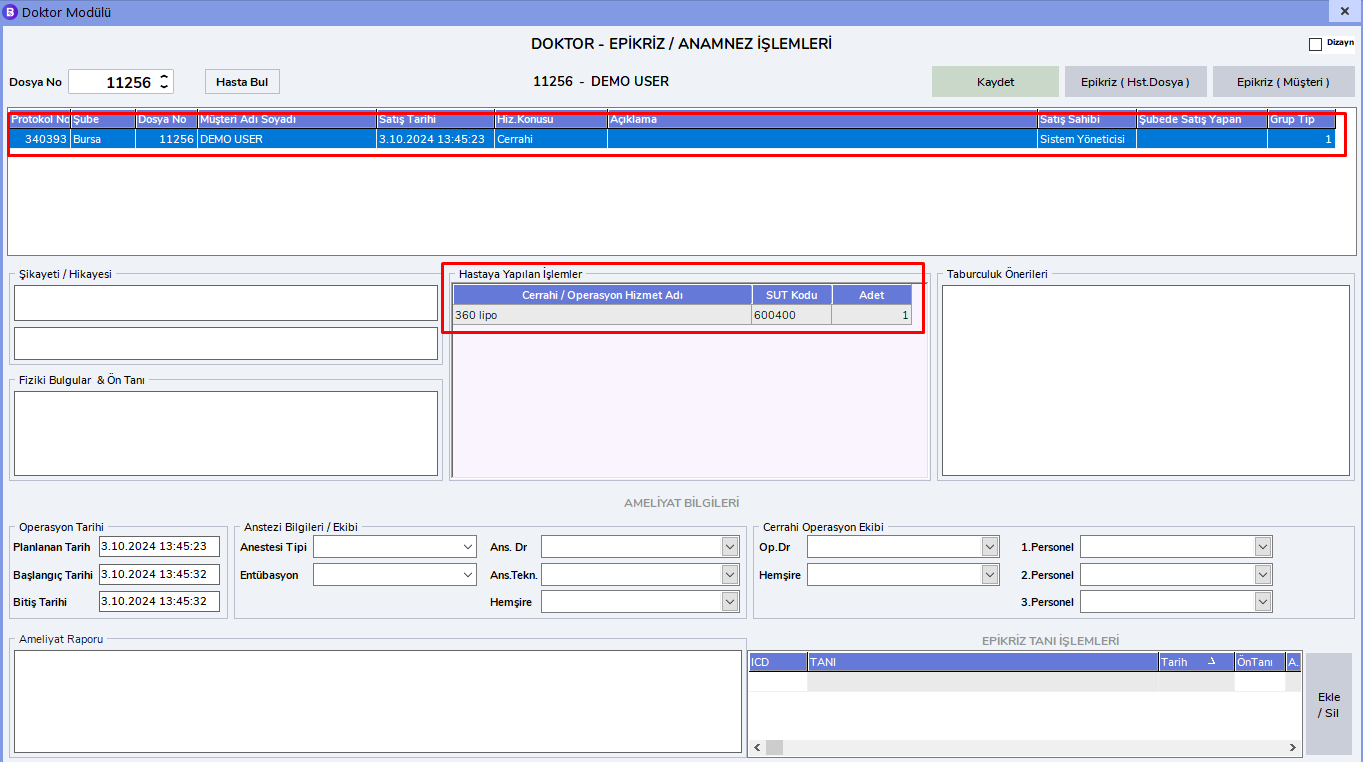
After finding the related patient, the protocols for which an epicrisis can be written will be listed in the area marked in red. The services connected to this protocol will be located at the bottom.
Epicrisis Fields to Fill In
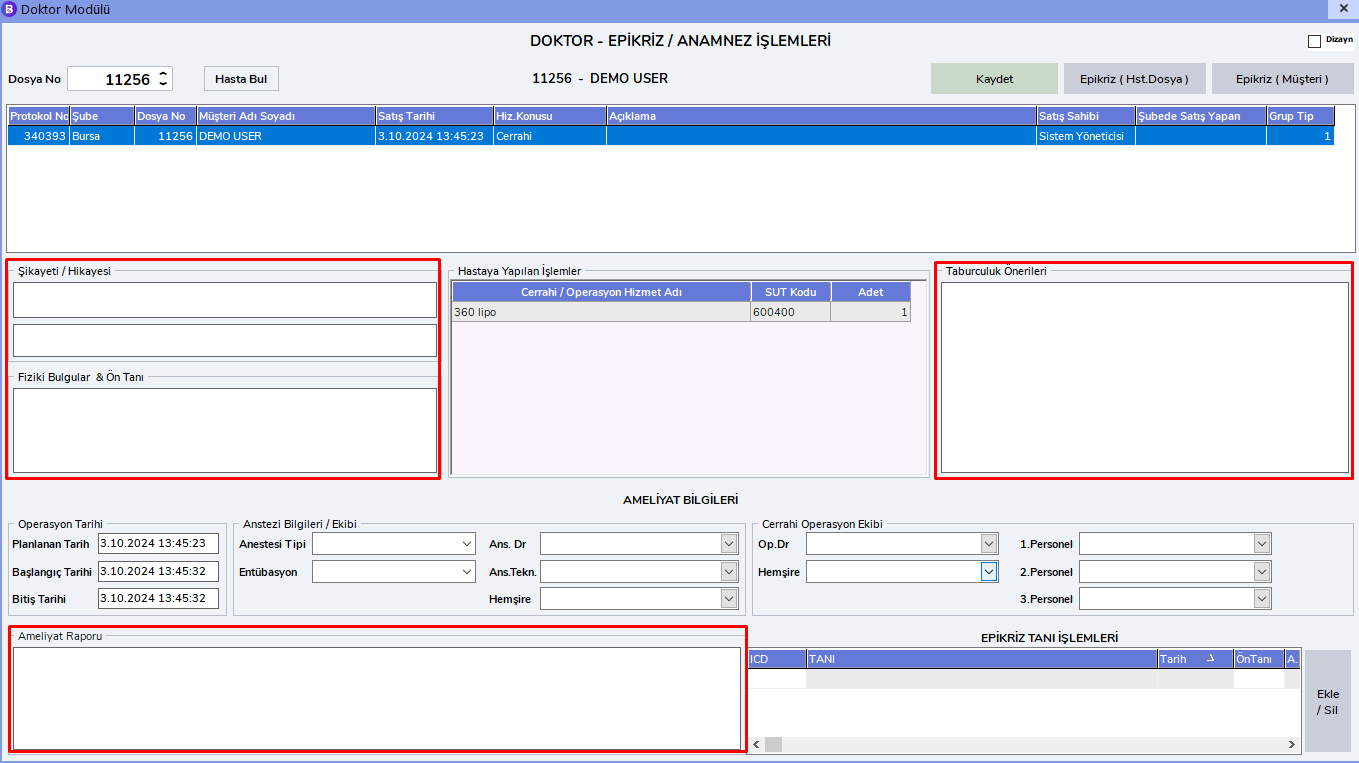
The sections that must be filled in within the epicrisis area are as follows:
- Complaint / History
- Physical Findings & Preliminary Diagnosis
- Operation Report
- Discharge Recommendations
After filling in these fields, click the "Save" button at the top right. The epicrisis operation will be completed.
Printing the Epicrisis
After the epicrisis operation is completed, you can use two different buttons in the upper right corner to print the epicrisis:
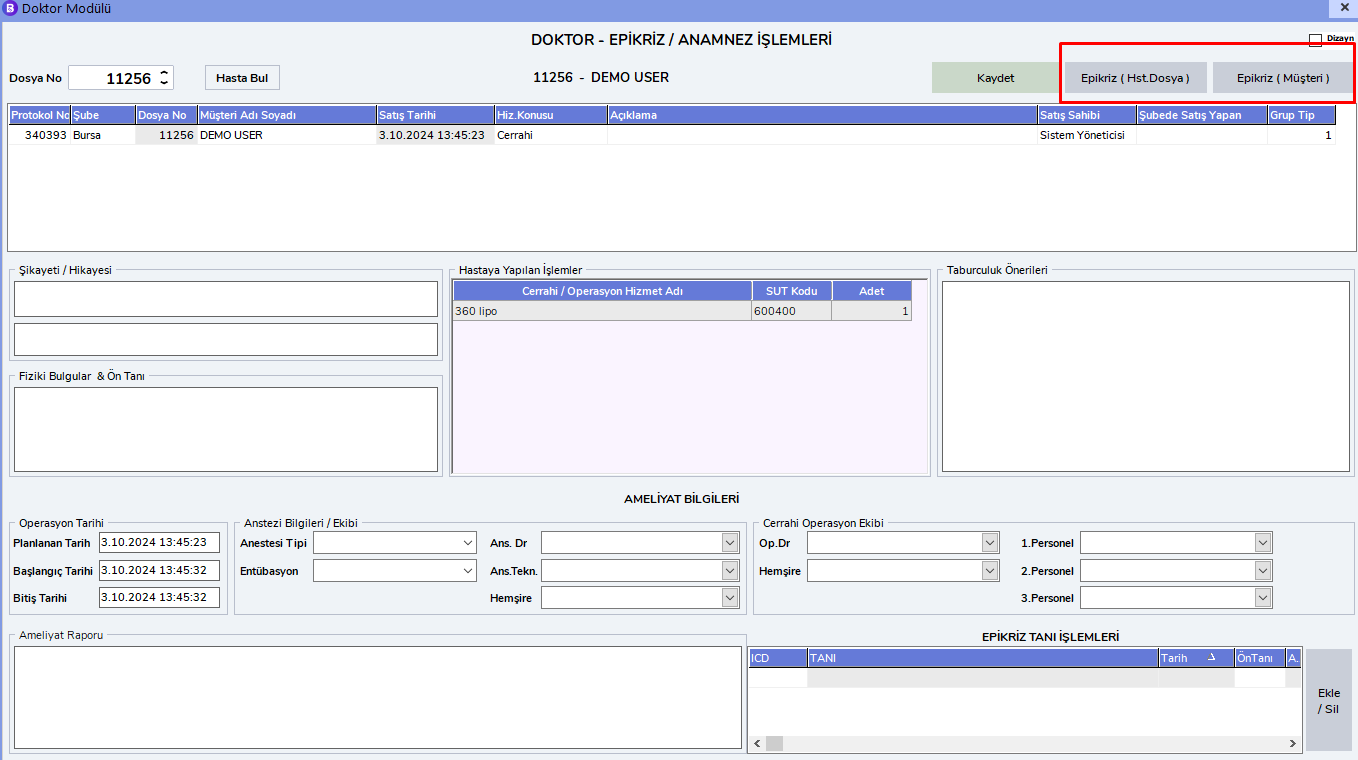
"Epicrisis (Patient File)" button: This button is used to add the epicrisis report to the patient file.
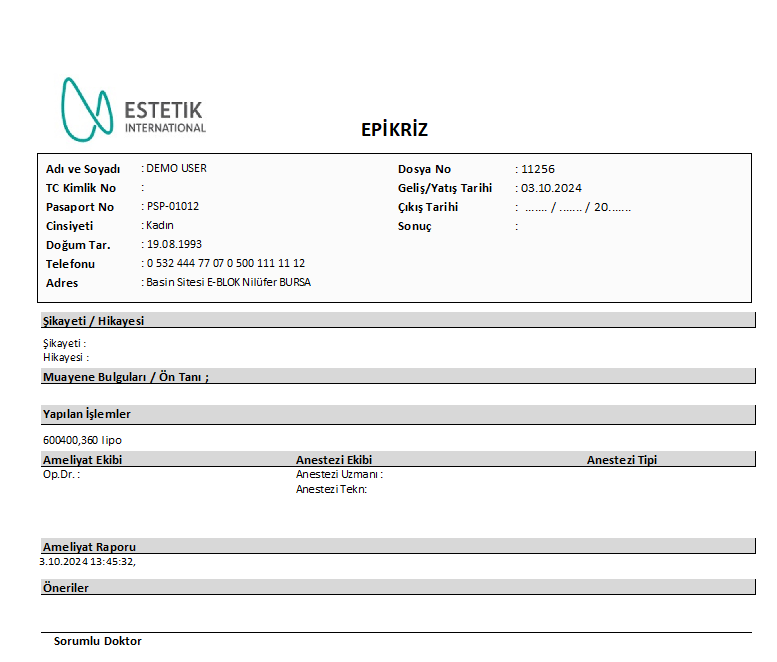
"Epicrisis (Customer)" button: This button creates the epicrisis report to be given to the patient.