Login and Appointment Operations
3. Opening the application and update control
3.1. Normal opening
When the application is started, the system first reads the saved configuration:
- Branch
- Room/device
- Warehouses
- Database connections
- Door system
- Barcode usage
- Automatic shutdown
- Update location
- Time service
Then the personnel login screen opens.
3.2. When a new version is found
If "Check for Update on Startup" is enabled in administrator settings, the old and new program versions are compared.
When a new version is found:
- The main application closes.
- The MAY Assist update helper program opens.
- "Please Wait" and the update progress area are displayed.
- The new application file is copied from the source location to the local working location.
- When copying is completed, the current MAY Assist application is restarted.
The user must not close the application or the computer during the update.
3.3. Errors that may occur during update
If the source file cannot be found, the system reports that the file to be updated could not be found.
If the target file cannot be created or overwritten, the system reports that the file could not be copied and the update could not be performed.
In this case:
- The network connection should be checked.
- Access to the update folder should be checked.
- It should be checked whether the target application file is locked by another process.
- The system administrator should be informed.
3.4. Technical path fields in the updater
When the main image on the update screen is double-clicked, the source and target file path fields are shown or hidden.
These fields are only for technical personnel:
- Source path is the location of the new application file.
- Target path is the local location of the running MAY Assist file.
The normal user should not change these fields. The Update button and exit/run button are hidden in the current automatic flow; the update starts automatically with a timer.
4. Personnel login screen
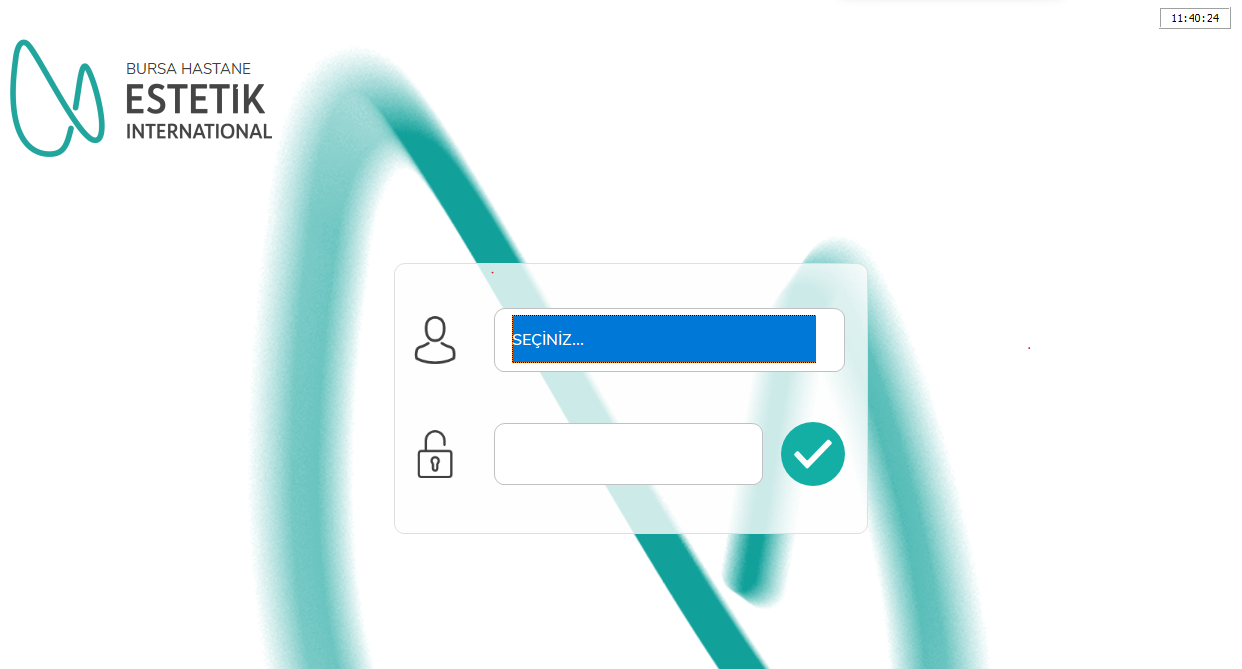
The screen title is "Estetik International Smart System".
4.1. Normal login operation
- Select your name from the user list.
- After the user is selected, the password field is focused automatically.
- The on-screen keyboard opens.
- Enter your password.
- Tap the login/confirm icon.
If the information is correct:
- The waiting/operation panel is displayed.
- User information is taken into the session.
- The daily appointment screen opens.
4.2. If login is attempted without selecting a user
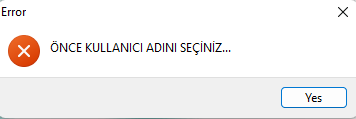
Even if a password has been entered, if no user has been selected, the following error window opens:
When the window is closed, the user selection area becomes active again.
4.3. If the password is wrong
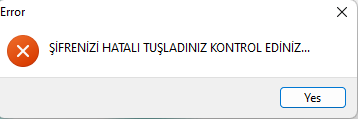
If the password entered does not match the password of the selected personnel, the following error window opens:
When the window is closed, the password field is focused again. The username selection is preserved.
4.4. Access to the administrator parameter screen
There is protected administrator access on the login screen for maintenance/management purposes. This access should not be shared in normal user training.
When authorized administrator access is used:
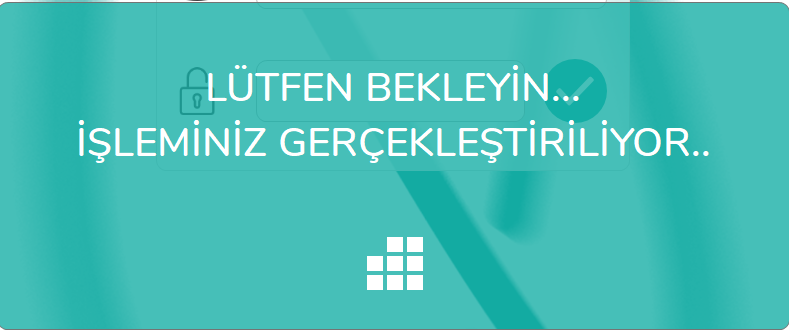
- The "Please wait, your operation is being performed" panel opens.
The Administrator Parameter Page is displayed.
4.5. Door lock
If the door system is active in administrator settings, the door lock icon appears.
When the icon is tapped:
- The serial port connection is triggered.
- The door lock opens or closes according to the configured door type.
- When the "open duration" expires, the system returns the door to its normal state.
If the door icon is not visible, the door system is disabled or not defined for the related device.
4.6. Closing the program and computer
The shutdown icon appears only if the restart/shutdown button is enabled in administrator settings.
When the icon is tapped, the following confirmation window opens:
Do you want to close the MAY Assist Program and the Computer?
The window title is:
PROGRAM / COMPUTER WILL BE SHUT DOWN
- Yes: The room is set to offline, the program closes and the computer shuts down.
- No: The operation is canceled and the login screen remains open.
4.7. Automatic computer shutdown
If automatic shutdown is enabled in administrator settings, at the configured hour and minute:
- The room status is set to offline.
- The application closes.
- The computer shuts down automatically.
4.8. Double-clicking the clock area
Double-clicking the clock component on the login screen may run a computer restart command. This is not a normal user operation and should be explained in trainings especially with a "do not touch/do not double-click" warning.

5. Daily appointment/patient selection screen
This screen opens when personnel login is successful.
5.1. Information on the screen
- Name of the logged-in personnel
- Branch name
- Daily appointment cards
- Patient name surname
- Appointment start time
- Appointment end time
- Appointment duration
- Appointment type
- Door lock icon
- Log out/main page icon
- Technical information panel
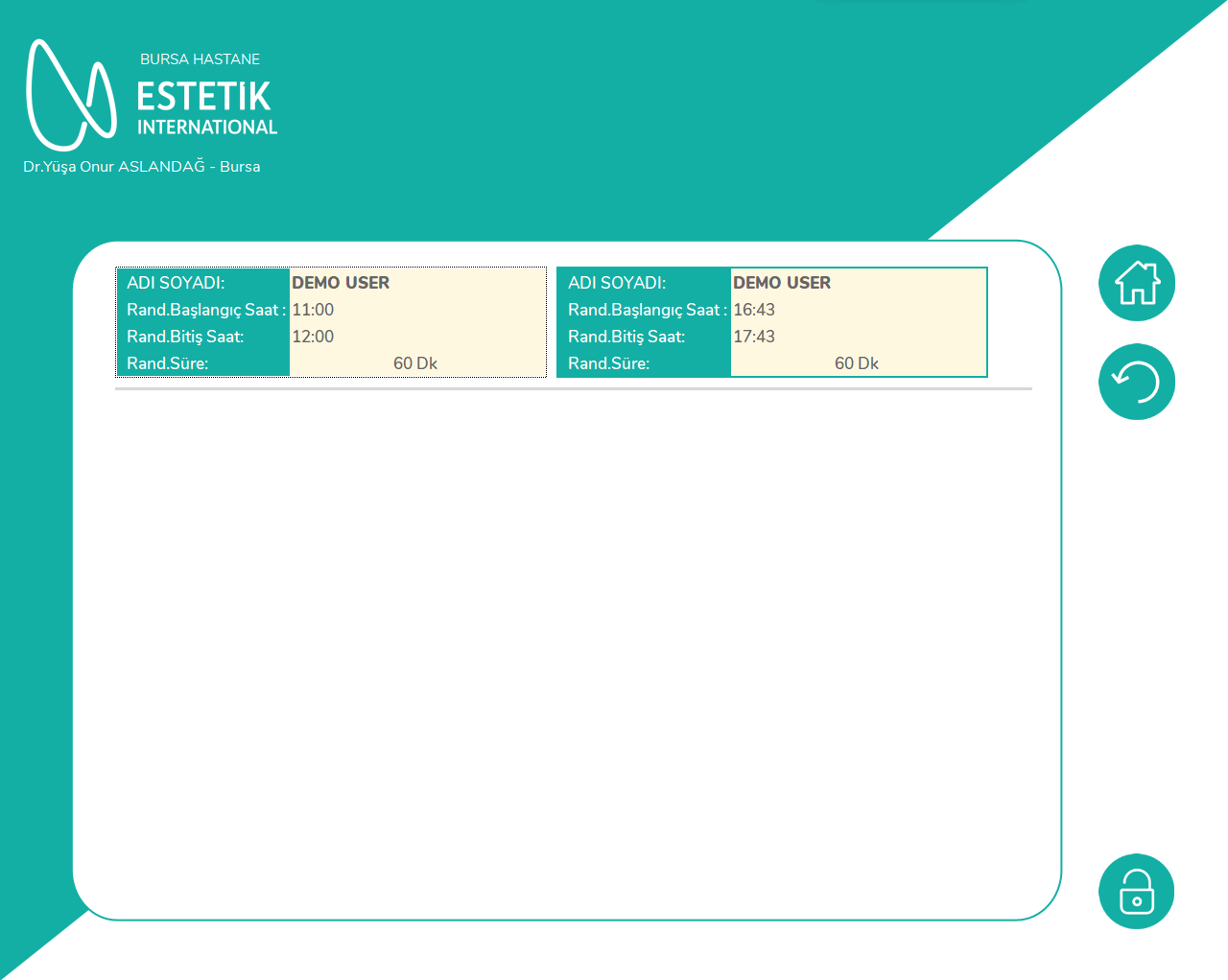
5.2. Listing appointments
In normal user mode, the system brings appointments assigned to the logged-in personnel.
If nurse mode is enabled:
- Instead of filtering the list only by one personnel, it is prepared according to the service group suitable for the nurse workflow.
- The personnel list on the login screen also changes according to the nurse authorization group.
5.3. Card colors
Appointment cards may be shown in different background colors according to appointment type:
- White card
- Light yellow/light cream card
Color is only a visual distinction; the patient selection method does not change.
5.4. Patient selection
To select a patient, tap or double-click the appointment card once.
When a selection is made, the system:
- Gets the patient file number.
- Gets the patient name.
- Gets the service group.
- Gets the patient gender.
- Tries to find the equipment defined in the appointment.
- Closes the daily appointment screen.
- Opens the patient's service/session selection screen.
5.5. Empty list status
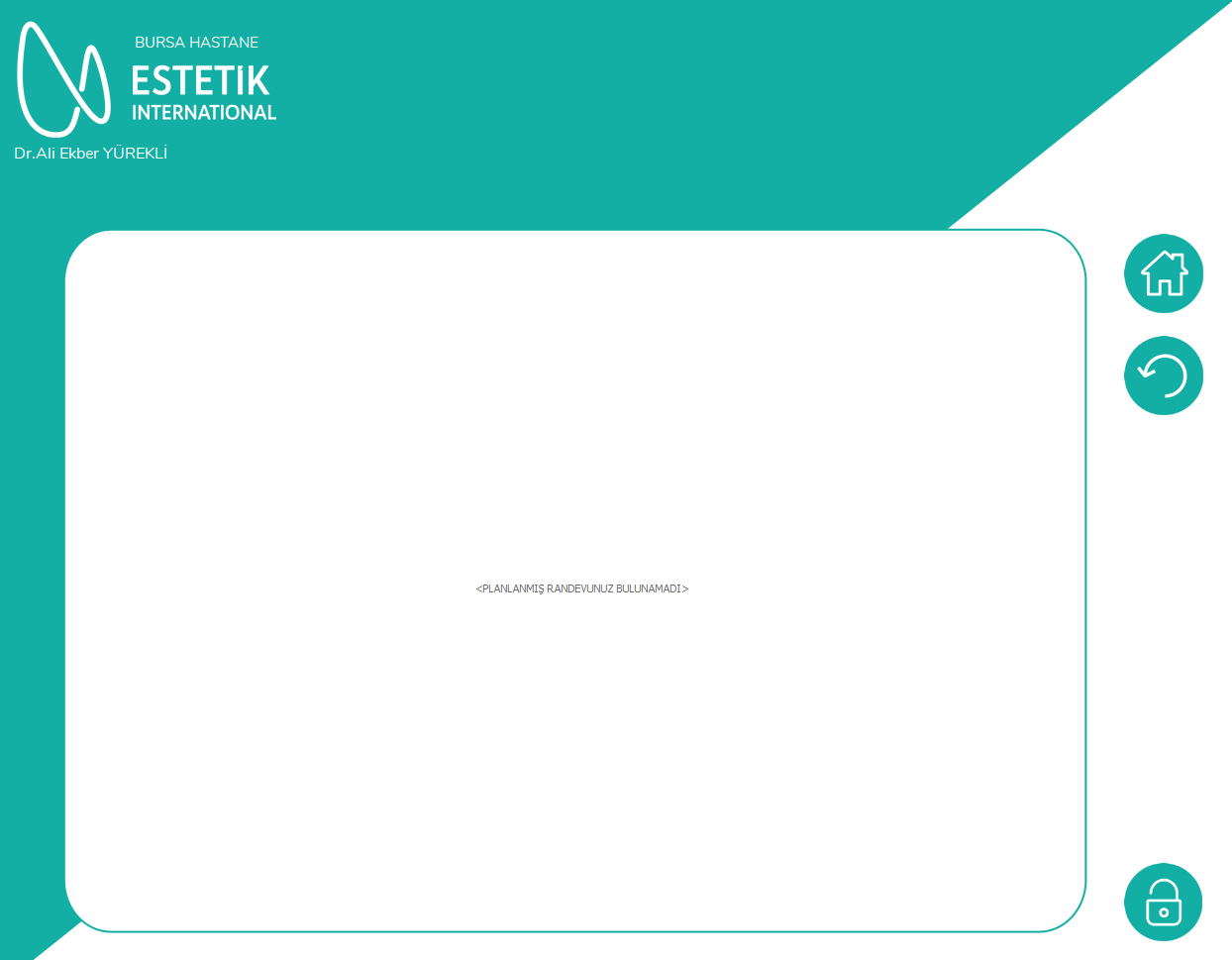
If there is no record in the list, card selection does not start an operation. The user should:
- Check appointment planning,
- Verify that they logged in with the correct user,
- Have the correct branch and date setting checked.
5.6. Log out from session
When the main page/logout icon is tapped:
- The room is set to "ready/empty" status.
- The user returns to the login screen.
- The selected user and password fields are cleared.
- Branch information is preserved.

6. Patient service and session selection screen
This screen opens when the patient is selected from the appointment screen.
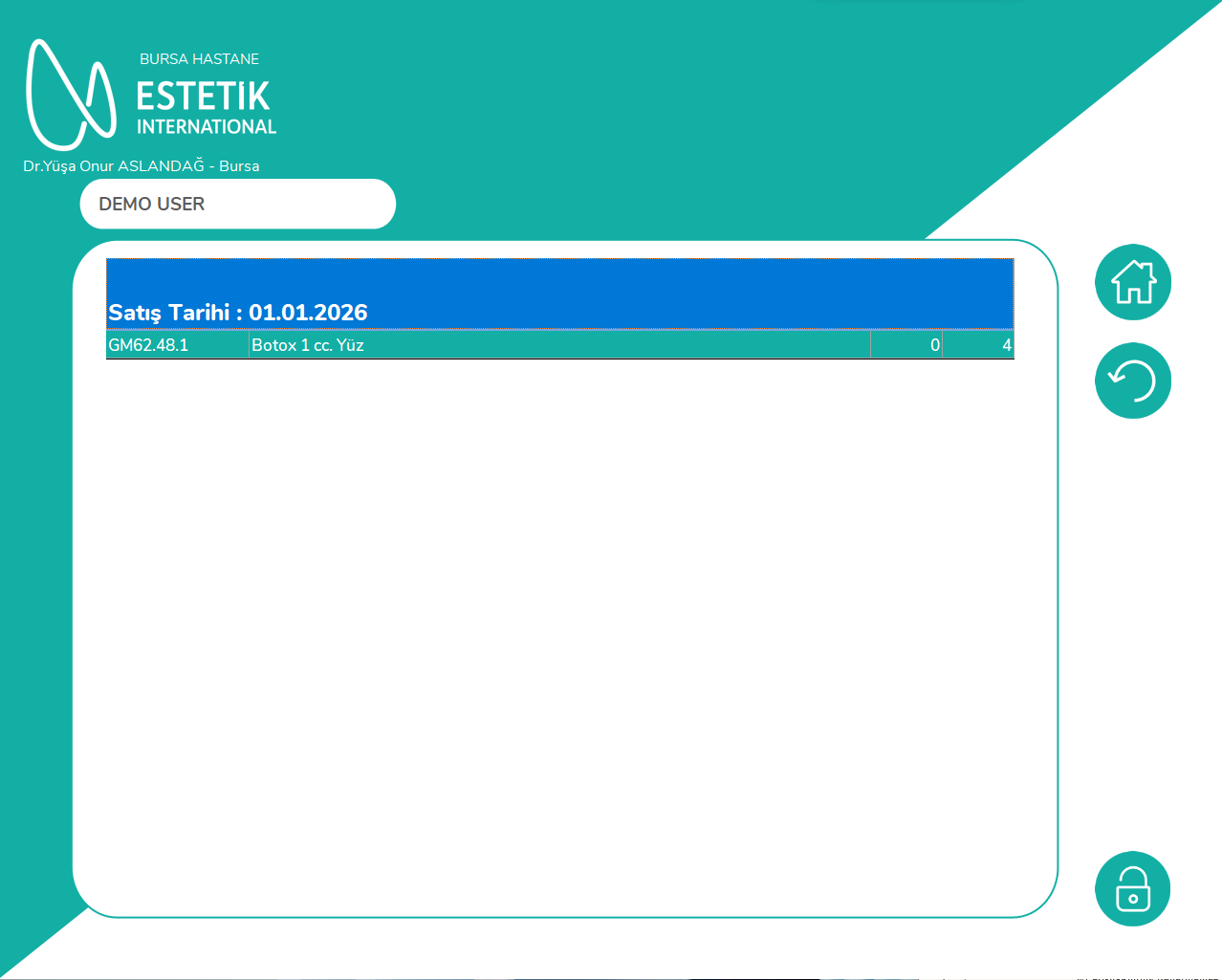
6.1. Information on the screen
- Branch name
- Logged-in personnel
- Patient name
- Patient's open services
- Product/service code
- Product/service name
- Total session
- Applied session
- Sales date
- Total sales amount
- Total collection amount
- Debt balance
- Door lock icon
- Logout icon
- Return to previous screen icon
- Technical information panel
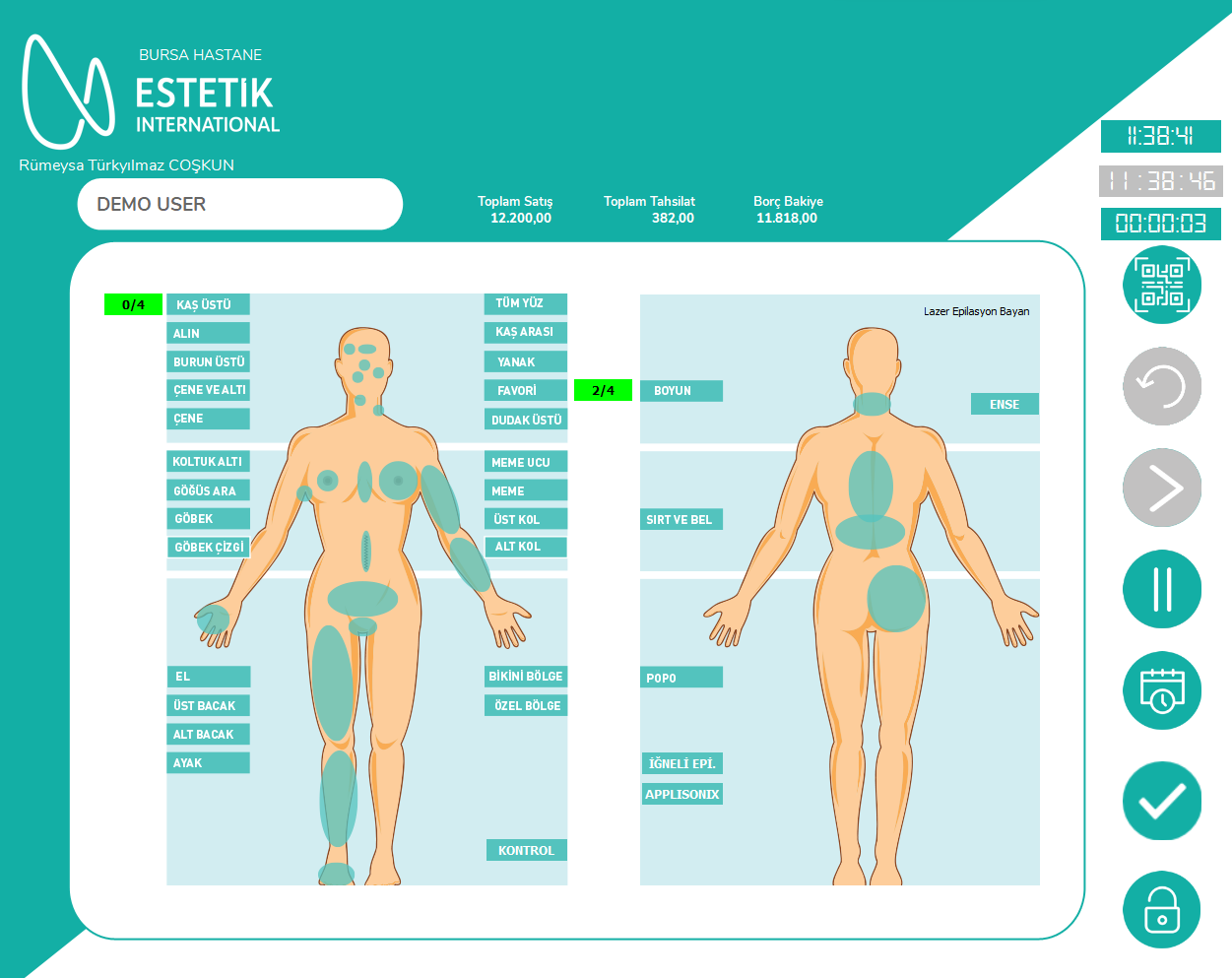
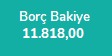
6.2. Debt balance warning
If debt balance is not 0.00, the "Debt Balance" field and the balance amount blink.
This visual warning:
- Does not automatically block service selection.
- Is shown so the user notices the financial status.
- Collection control should be performed before the operation according to institution procedure.
If the debt is 0.00, blinking stops.
6.3. Service selection
It is enough to tap the service card or list row once. Double-clicking performs the same operation.
If the selection is successful:
- The protocol number is taken into the session.
- The service group is determined.
- The price information of the service is taken.
- The service selection screen closes.
- The main application screen opens.
6.4. If the patient has an active service in another room
If an open/active service record exists in another room for the same patient on the same day, the service card does not open.
The "ACTIVE SERVICE" window shows:
- Active room ID
- Active room name
- Patient file number
- Patient name surname
- Information that the service is active in another room
At the end of the message, it is stated that the service card cannot be opened.
The user:
- Should check the room written in the message.
- If the previous session was left open by mistake, should ask an authorized person to close it.
- Should not open a second parallel session for the same patient.
6.5. If the patient's operating room service is active
If the patient appears active in the operating room, the "ACTIVE OPERATING ROOM SERVICE" window opens.
The window displays:
- Hospital number
- Operating room name
- Surgery doctor
- Patient name surname
- Information that the service is active in the operating room
In this case, the service card does not open.
6.6. Return to previous screen
When the back icon is tapped:
- This screen closes.
- The daily appointment/patient selection screen opens again.
- If a continuously open door type is used, the serial port connection is closed.

6.7. Completely logging out
When the main page/logout icon is tapped:
- The login screen is shown.
- User and password fields are cleared.
- The temporary waiting panel is closed.
