BCODE AKYS "Operation Calendar" Introduction
You can access the Operation Calendar from the "Operation Calendar" tab under the My Work menu on the left side.
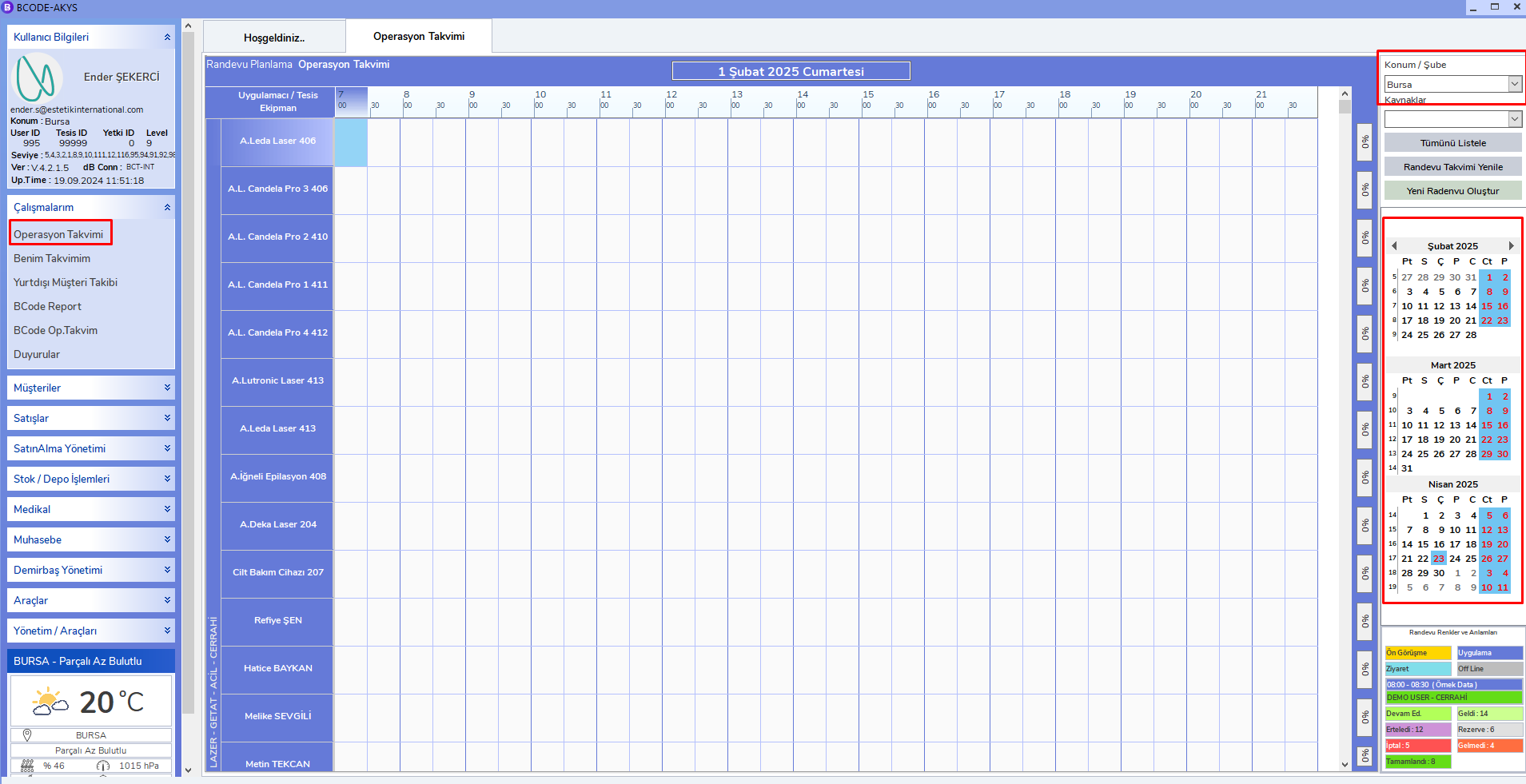
On this screen, you can check the availability of the devices, doctors, and personnel you will schedule. On the Operation Calendar screen:
- Devices and Personnel are located on the left side.
- You can see the time intervals at the top.
- You can select Location / Branch from the area marked in red at the top right.
- You can select the Date from the area marked in red on the right side.
Example Planning
For example, you can see a "Pre-Consultation" appointment scheduled on January 1, 2025, between 14:26 - 15:26, as shown below.
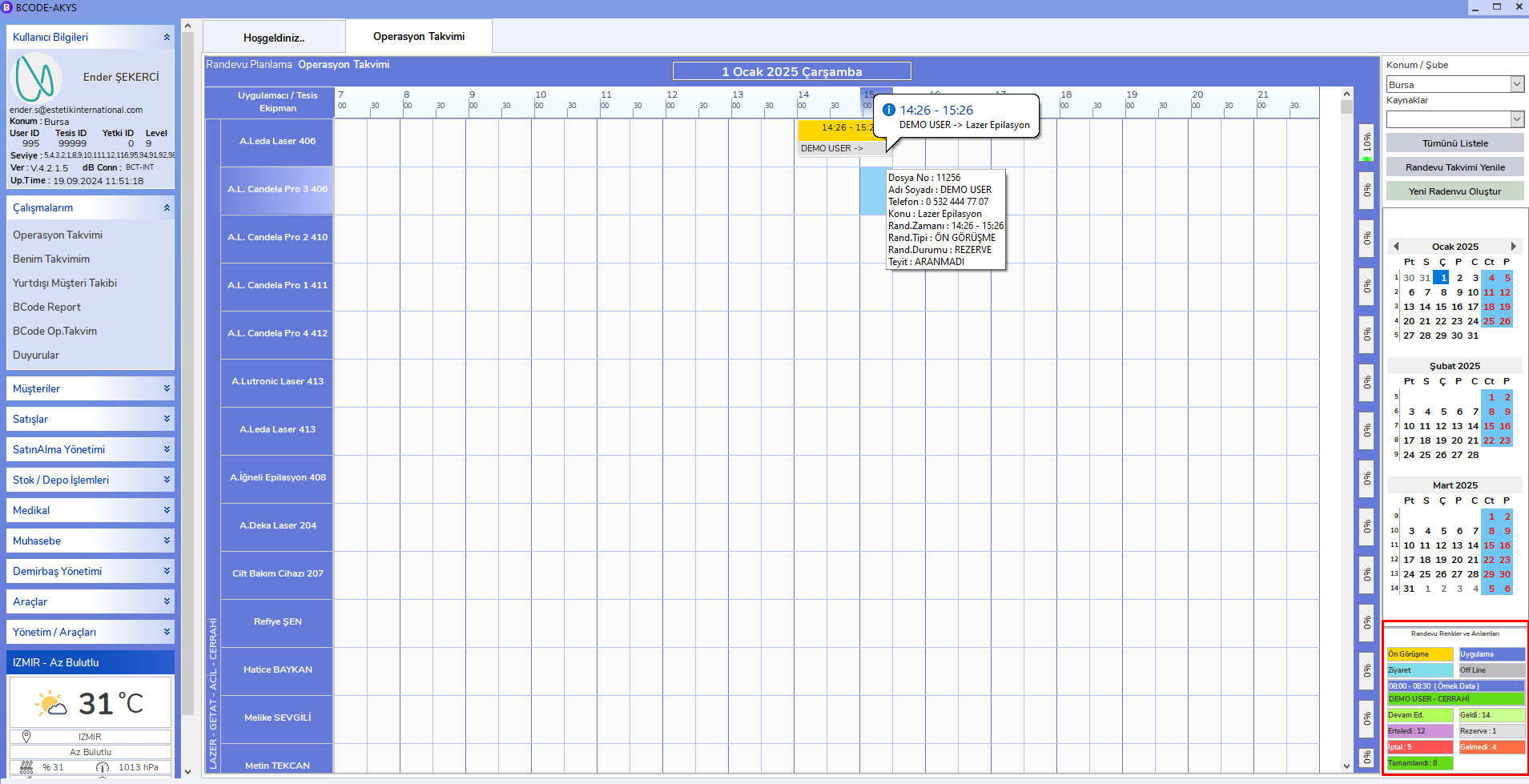
After planning is completed, the Operation Calendar will be filled automatically for the related date and time interval. When you hover over it briefly, details about the patient will be displayed.
Note: Meaning of Colors
There are multiple color codes in the Operation Calendar. The colors above the patient name indicate the type of appointment:
- Yellow: Pre-Consultation appointment
- Blue: Application appointment
- Light Blue: Visit
- Gray: Offline appointments
You can find detailed information about the colors in the area marked in red at the bottom right of the Operation Calendar.