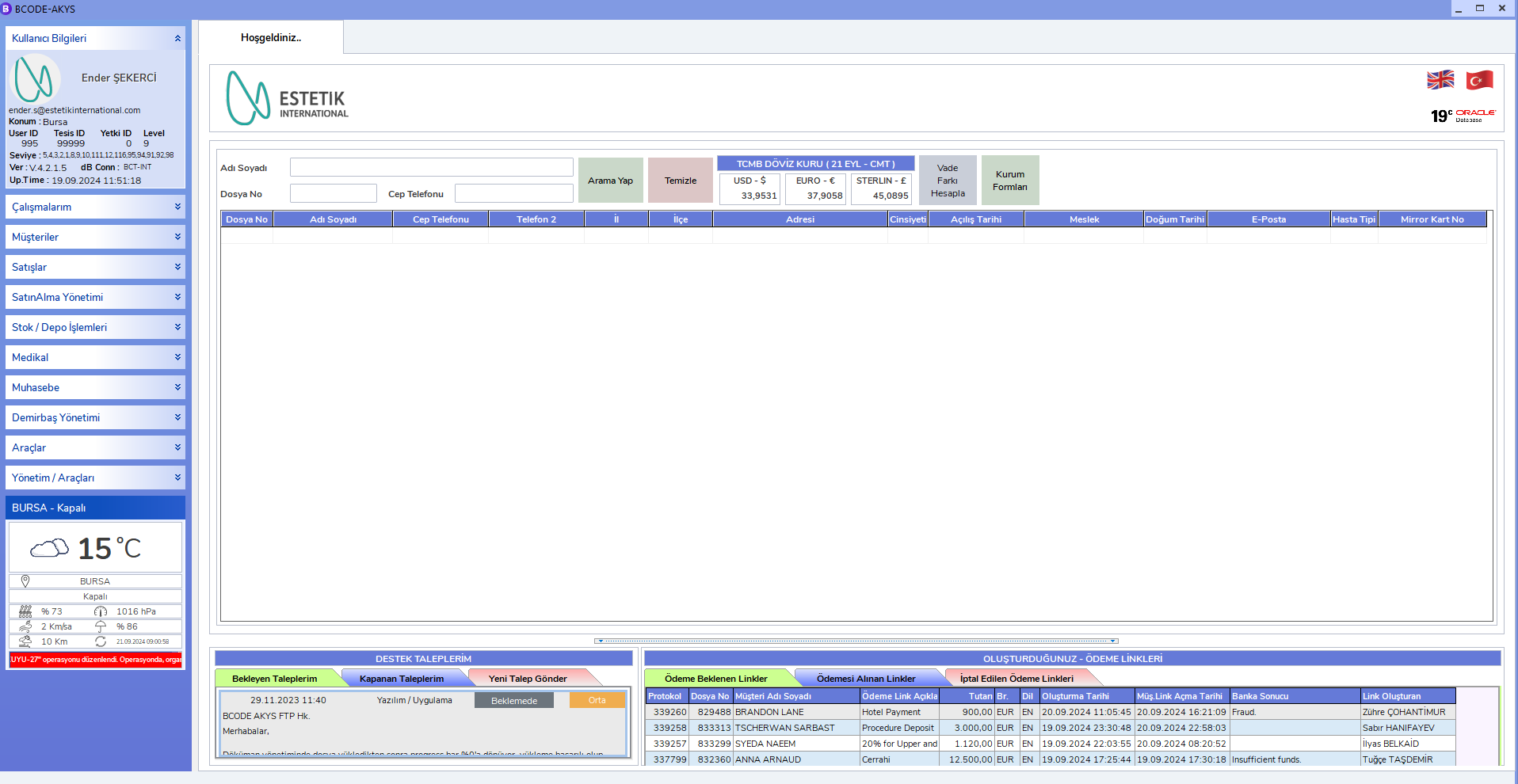
BCODE AKYS "Forgot My Password" Procedure
Required Information
- Your Username
- Your E-Mail Address
(You must have obtained this information from your Human Resources department.)
Step 1: Start the BCODE AKYS program and open the login screen
Run the BCODE AKYS program on the desktop.
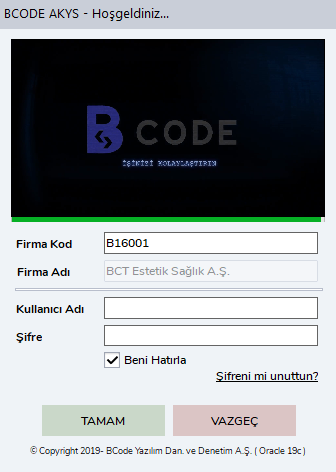
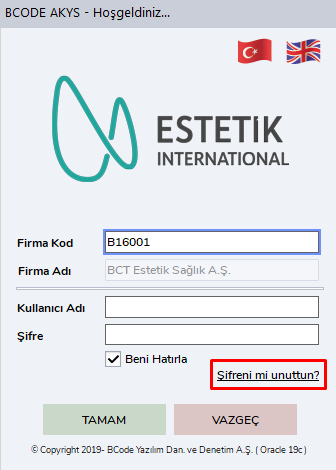
Step 2: Click the "Forgot My Password" button
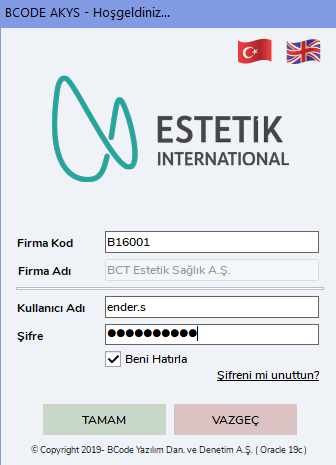
Click the "Forgot My Password" button on the login screen.
Step 3: Password Change Operations
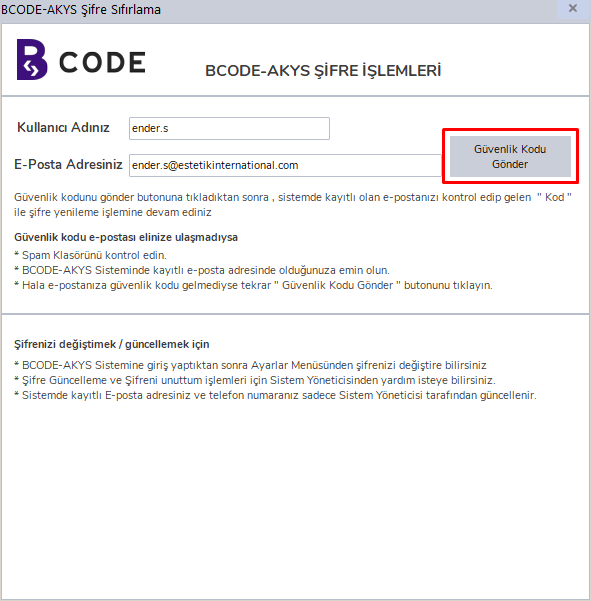
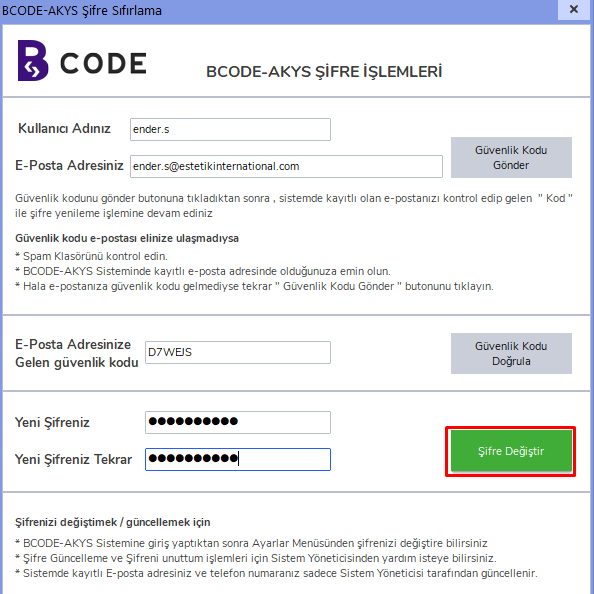
In the Password Change Operations window that opens, enter your username and your e-mail address, which is the corporate e-mail address registered in the system.
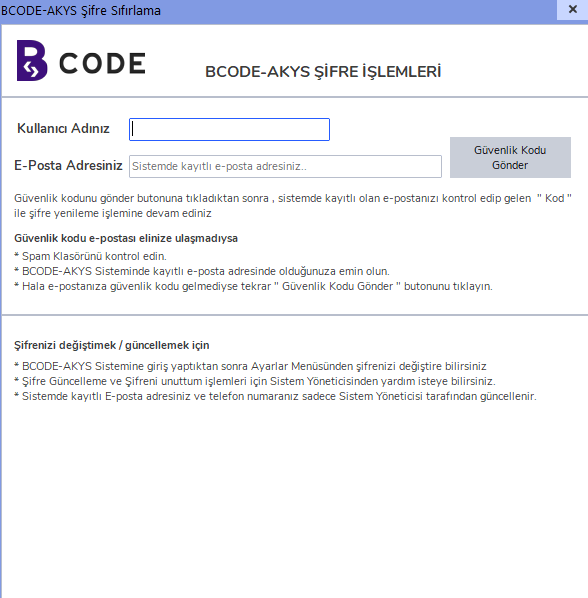
Step 4: Click the "Send Security Code" button
After entering your username and e-mail address, click the "Send Security Code" button.
Step 5: Confirm the "A security code has been sent to your e-mail address" message
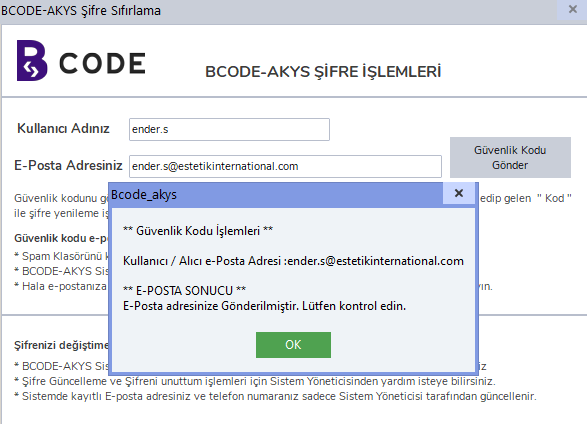
Make sure you see the message indicating that the security code has been sent.
Step 6: Check your corporate e-mail address
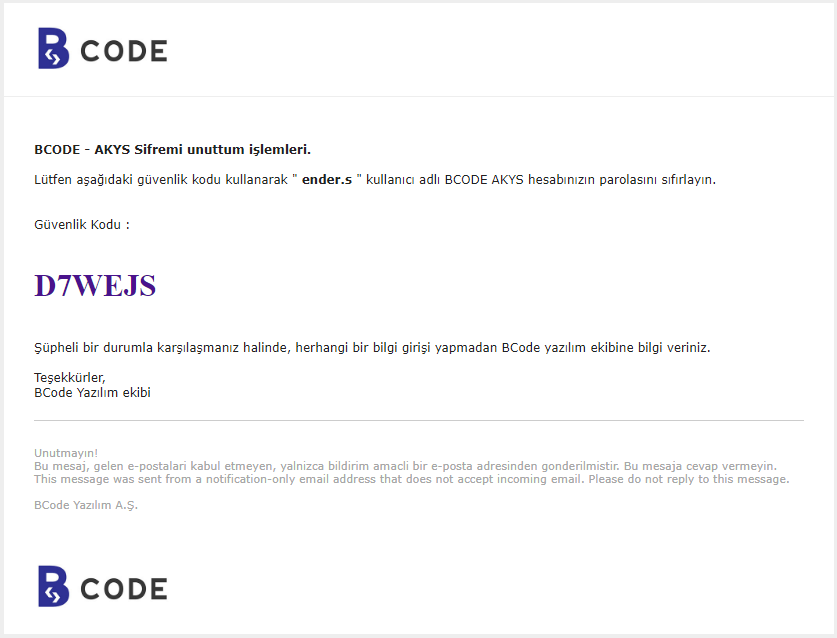
Check the e-mail address provided by your institution and note the security code you received.
Step 7: Enter and verify your security code
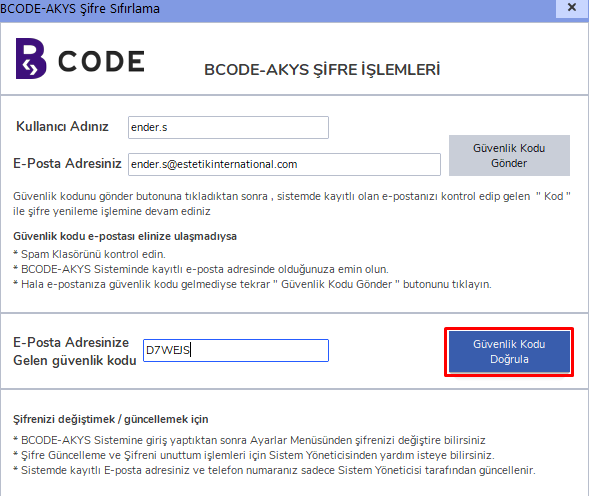
Return to the BCODE AKYS password reset screen, enter the security code you received in the security code field, and click the "Verify Security Code" button.
Step 8: Create your new password
Enter your new password twice and click the "Change Password" button.
Step 9: Log in on the login screen with your username and new password
After your password has been changed successfully, return to the login screen and log in to the system using your username and new password.
Step 10: BCODE AKYS welcome screen
After you log in, the BCODE AKYS welcome screen will appear. Welcome!