Warehouse Count Operations Procedure
To perform warehouse count and inventory operations, click the "Warehouse Count Operations" tab under the "Stock / Warehouse Operations" menu on the left side.
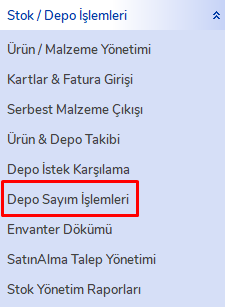
Warehouse Count and Inventory Operations
This section is used to perform warehouse counts and inventory corrections.
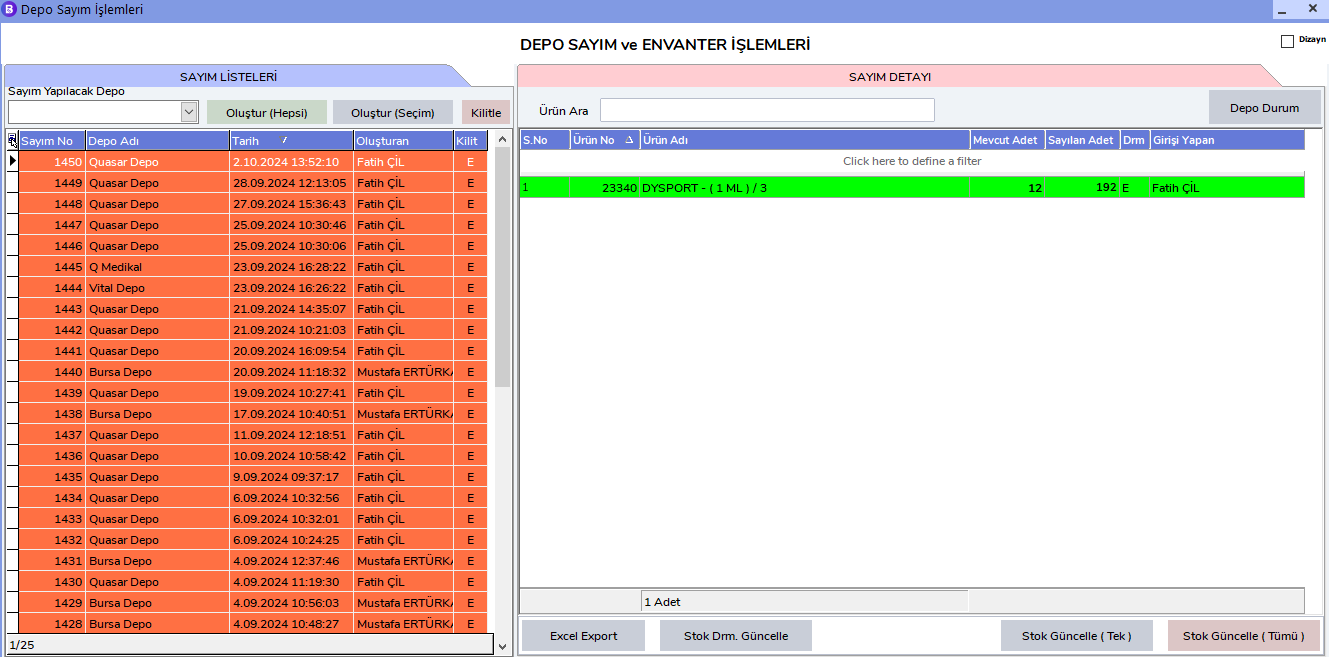
Warehouse Selection
To perform a warehouse count, first select the related warehouse from the Warehouse to Count field.
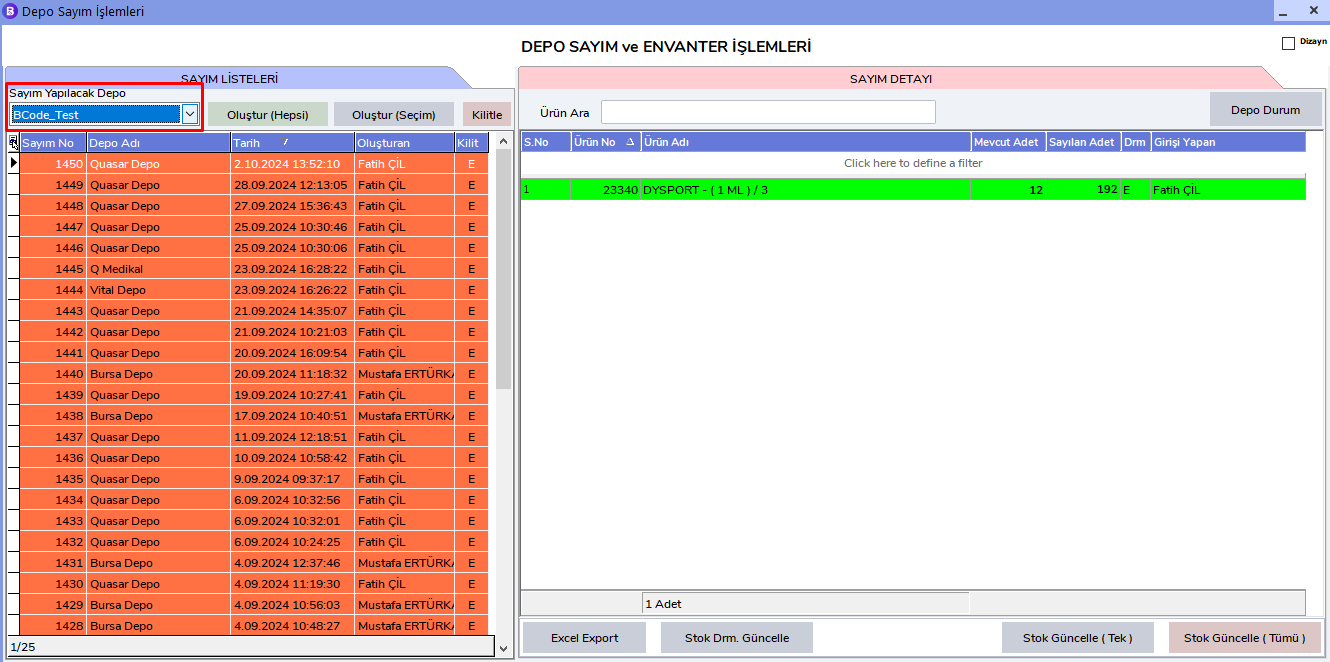
- Create (All): Used to list and update the stocks of all products in your warehouse collectively.
- Create (Selection): Used to select specific products in your warehouse and update their stocks.
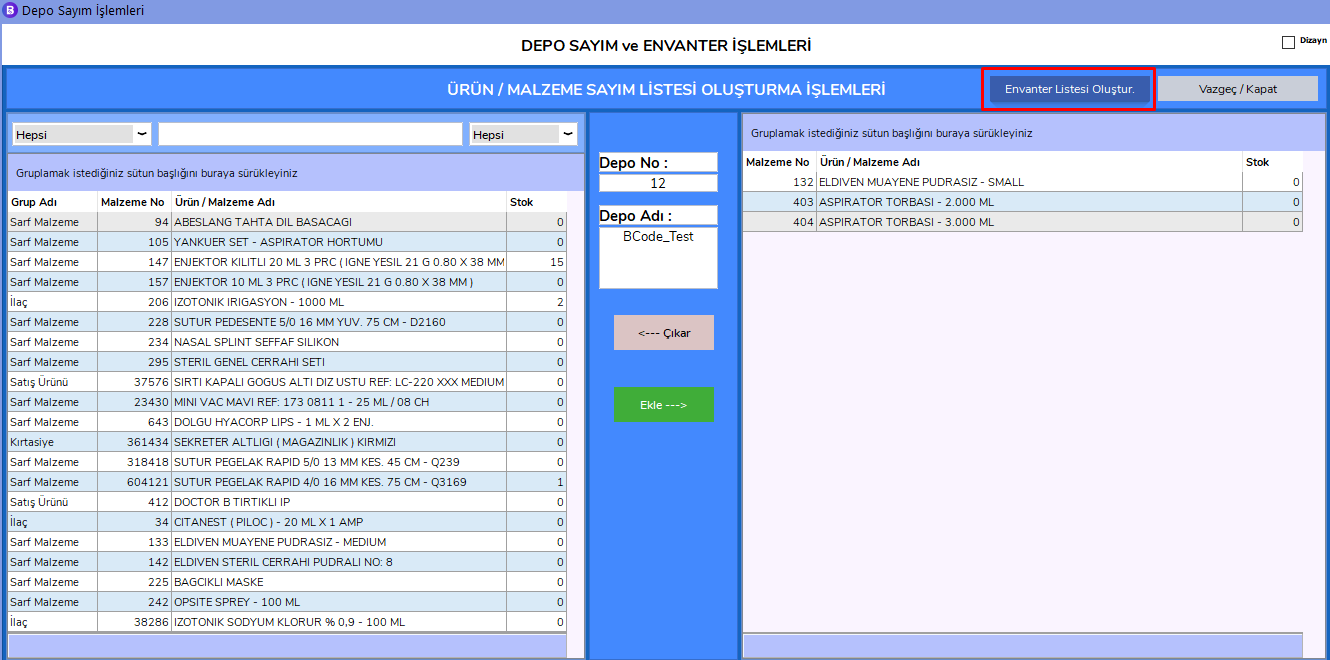
If you want to continue with the Create (Selection) option, find the products on the search screen and transfer them to the list on the right.
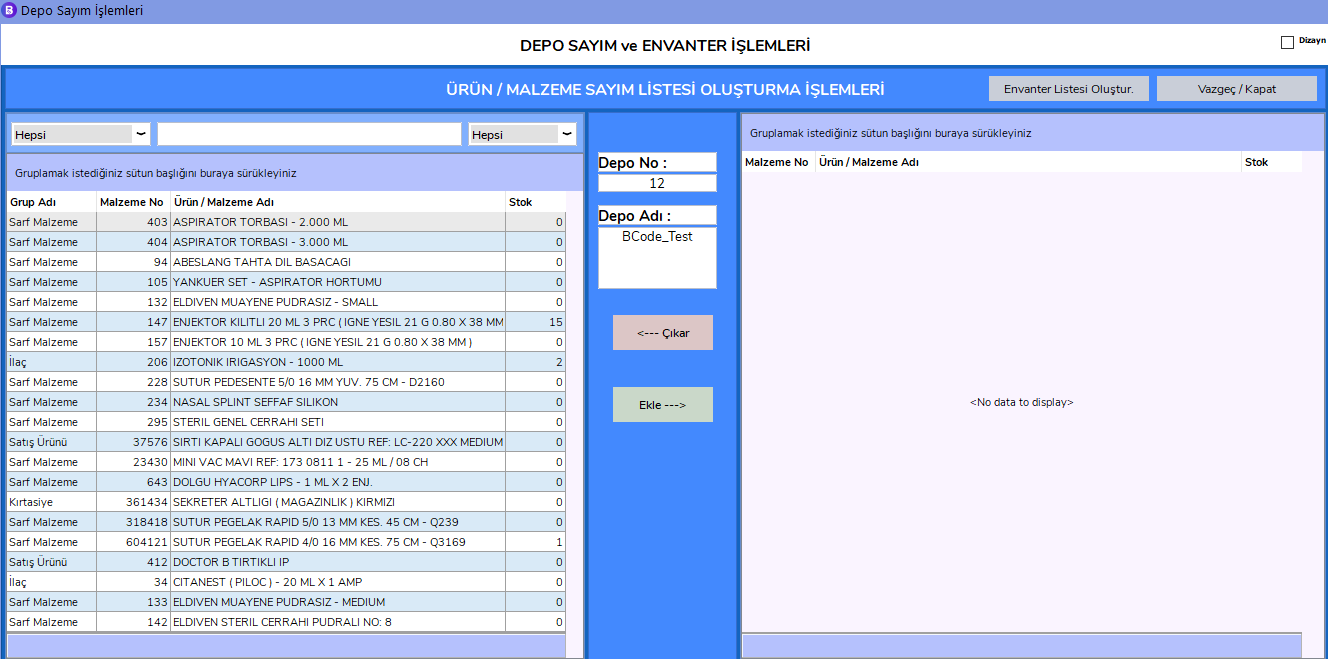
Click the "Create Inventory List" button for the products added to the list.
Warehouse Locking Operation
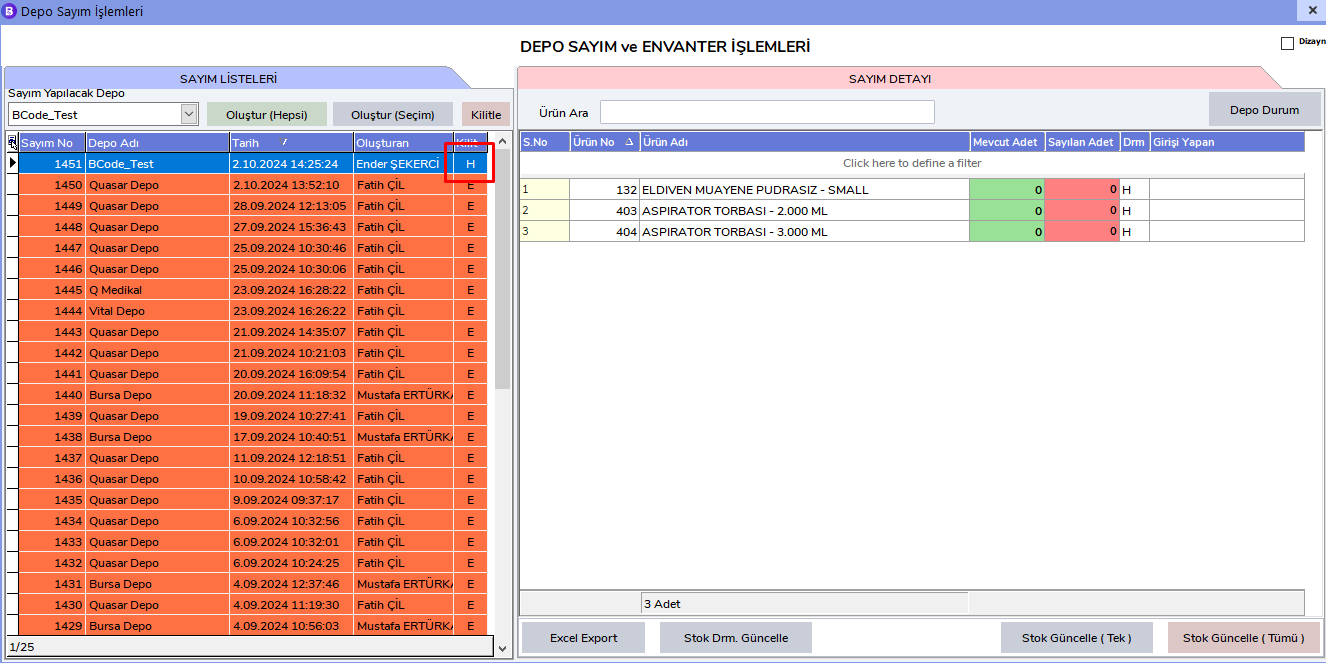
As soon as you create the inventory, your warehouse is automatically locked and closed to transfer operations. You can understand this from the "Lock" field on the left being in "H" status.
- "H" status: The warehouse is closed to transfer operations.
- "E" status: The warehouse is open to transfer operations.
Count and Stock Update
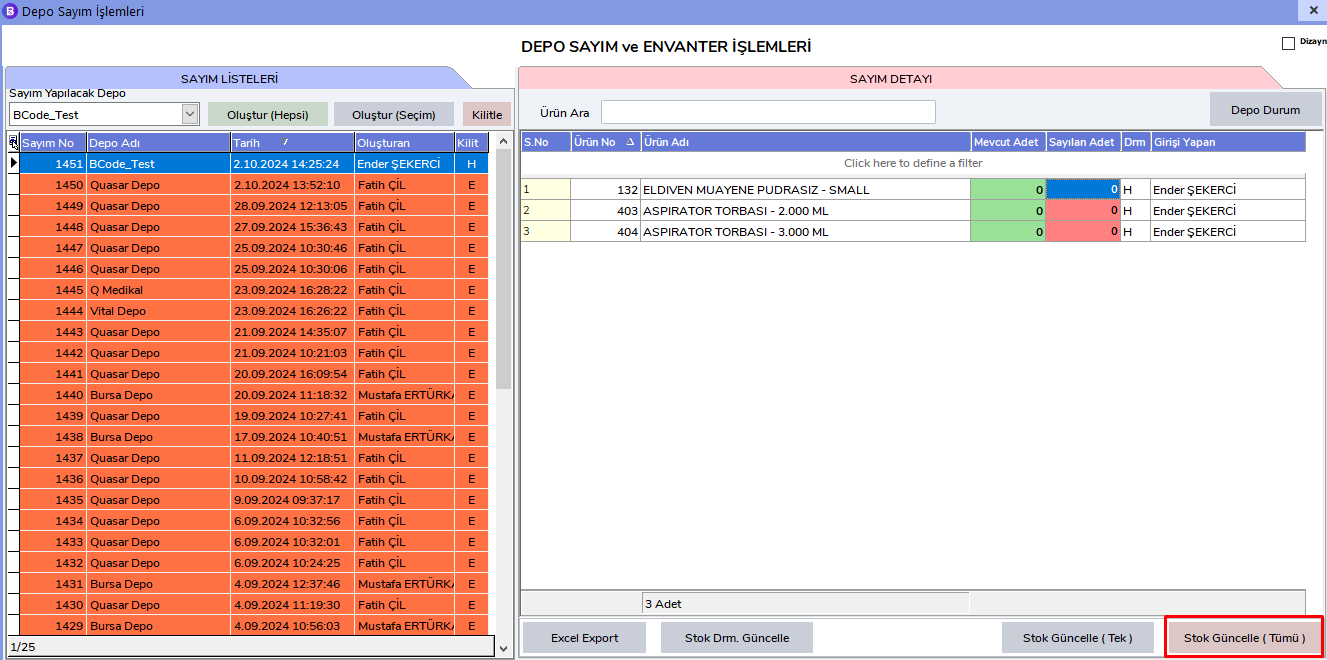
Enter the stock quantities of the counted products in the "Counted Quantity" field. The "Entered By" field being filled indicates that the stock entry has been saved by the system.
Stock Update Options
- Update Stock (All): Updates the entire list with current stock information.
- Update Stock (Single): You can update selected products one by one.
Unlocking the Warehouse
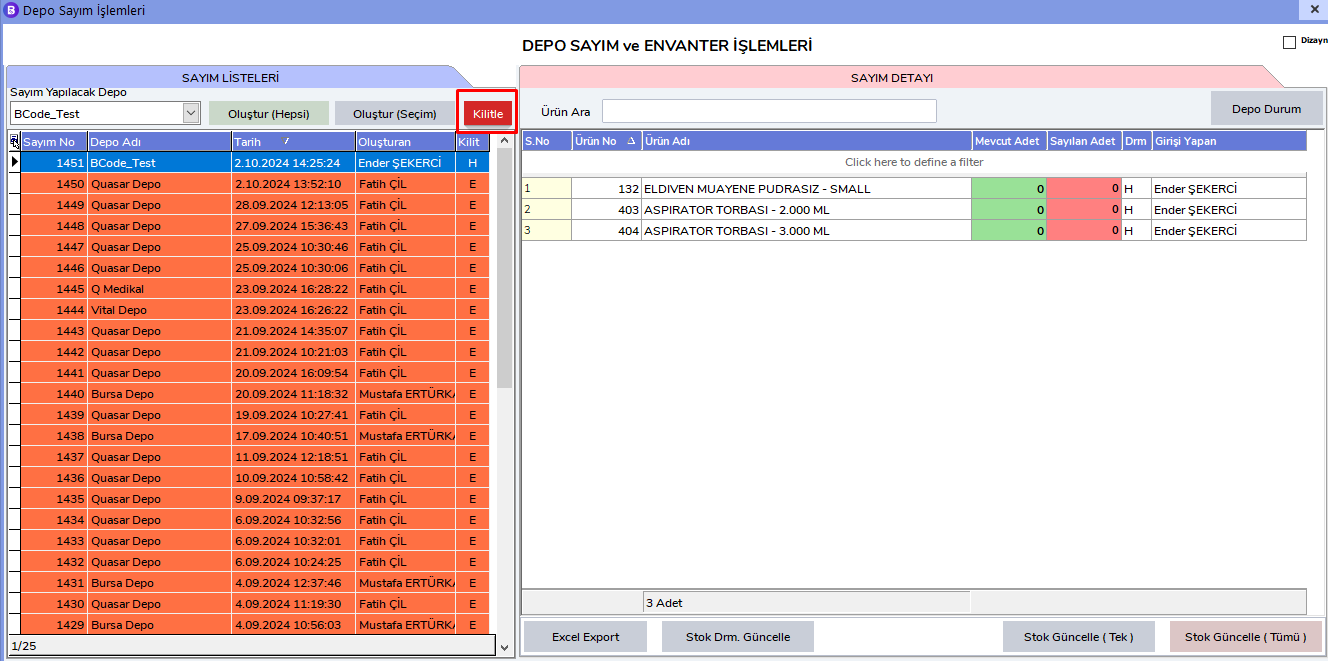
After completing stock update operations, click the "Lock" button to open your warehouse to transfer operations. At the end of this operation, the "Lock" field will change to "E".
This procedure was created to ensure that warehouse inventories are checked and updated regularly.