Fixture Reports Procedure
To receive and manage reports for the fixtures in your institution, follow the steps below:
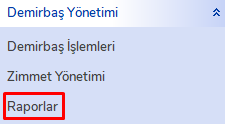
- Access the Fixture Management Menu:
- Click the "Fixture Management" menu on the left side.
- Select the "Reports" tab from the submenu that opens.
- Determine Reporting Criteria:
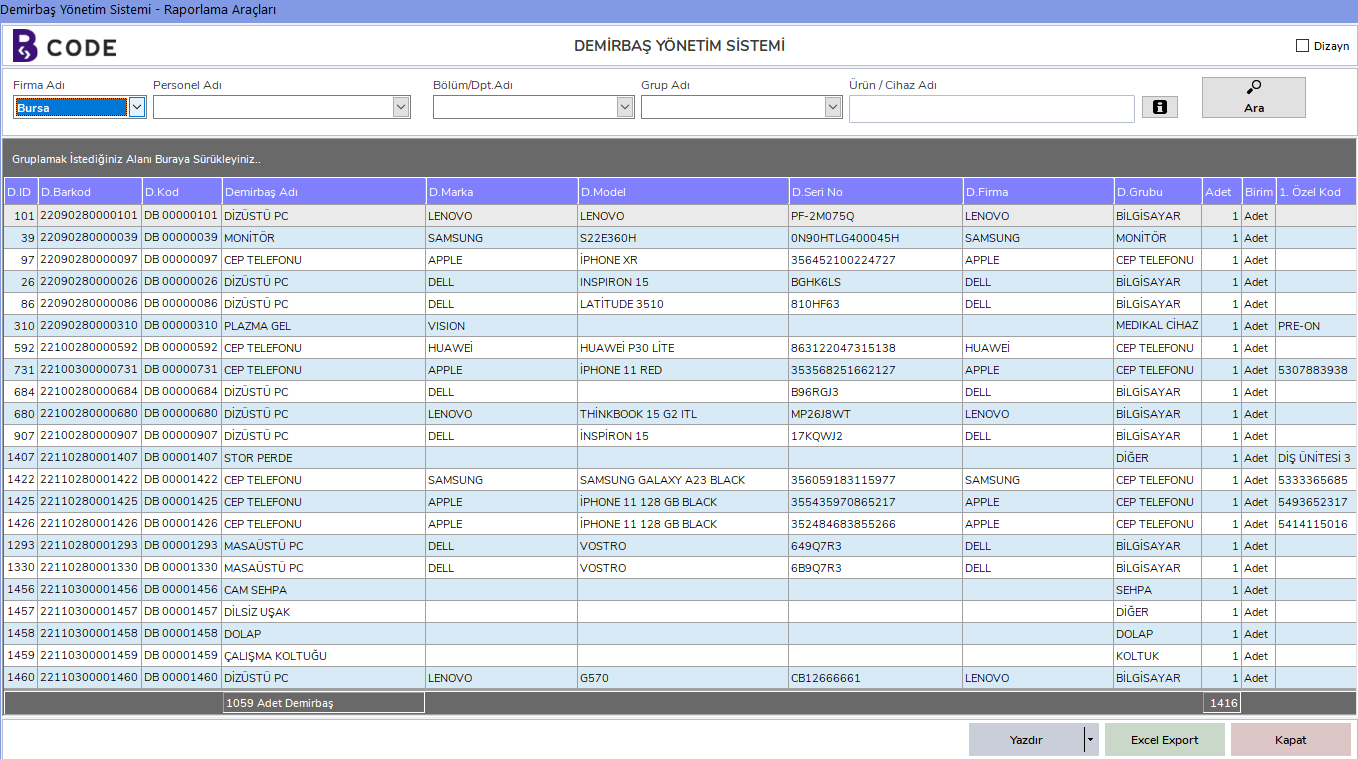
- In the "Fixture Reports" window that opens, you can use the following fields to filter the fixtures you want to report:
- Company Name: Enter the company name to list fixtures belonging to a specific company.
- Personnel Name: Enter the personnel name to view fixtures assigned to a specific person.
- Department Name: Enter the related name to list fixtures belonging to a specific department.
- Group Name: Use the group name to filter fixtures by the group they belong to.
- Product/Device Name: You can use this field to search for a specific product or device.
- Create and Print the Report:
- After applying the required filters, click the "Search" button to view the fixture list.
- You can use the "Print" button to print the generated list.
- If you want to export the list in Excel format, click the "Export to Excel" button.
This procedure should be used to track and report the fixtures in your institution effectively. Regular reporting helps monitor the current status of fixtures and quickly identify possible deficiencies or issues.